Android TV App
Setting up and running a Hayyalasalah screen on an Android TV, TV box or streaming stick — choosing the right screen type, and every option in the on-screen menu, all from the TV remote. For installers and mosque admins.
This guide is for the Android TV app. If your screen is a Raspberry Pi or a Linux box, use Guide 06 — Using the Display instead. What appears on the screen is set up in your admin account: Guide 03 for the prayer board, Guide 04 for the hall signage.
Getting started
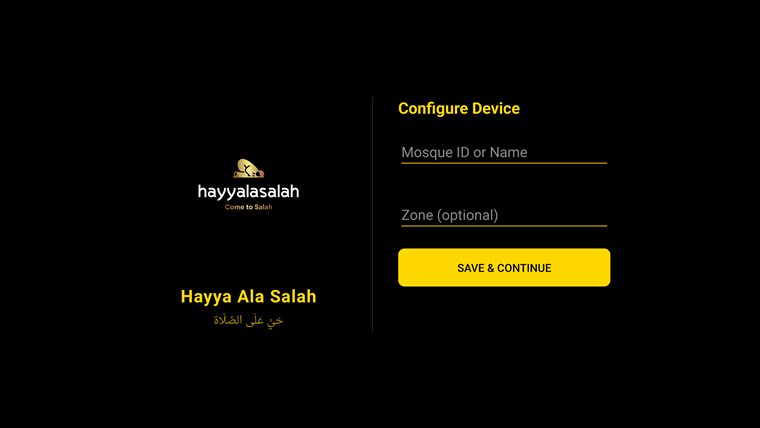
A fresh screen asks for three things. Once set, it runs on its own — the setup only reappears if you reset the mosque.
Enter your Mosque ID or name
Type your Mosque ID (
MSQ-…, from your welcome email), or start typing the mosque name or postcode and pick it from the list. The screen confirms the mosque before you continue. Zone is optional — only fill it in if your admin has set up multi-zone signage and this screen belongs to a named zone.Choose the screen type
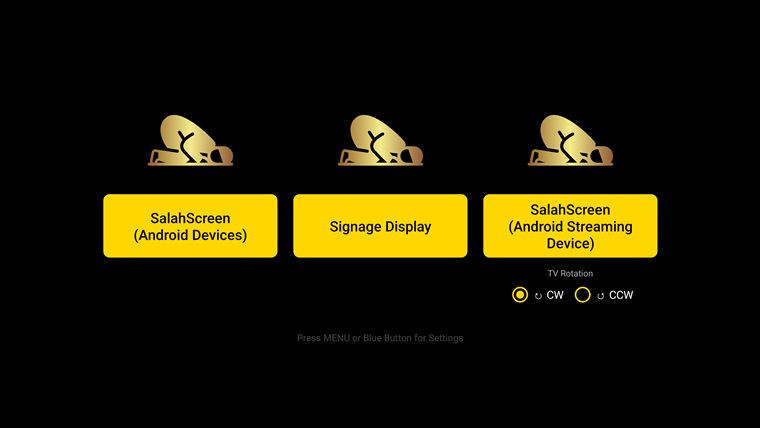
Pick SalahScreen (Android Devices), Signage Display or SalahScreen (Android Streaming Device) for what this screen should show. The three are explained below. The chooser also carries a TV Rotation option (CW / CCW) for how the screen is mounted.
The screen loads and runs
It downloads its data and starts displaying. It keeps working through reboots and short internet drops, and refreshes itself overnight.
▶ right-arrow opens the menu · ▲ ▼ move · OK chooses · Back closes · ▼ leaves the Diagnostics page · F5 or R on a keyboard reloads.
The three screen types
Two of them show prayer times (portrait); one shows the main-hall signage (landscape). Choose the one that matches this screen's job and hardware.
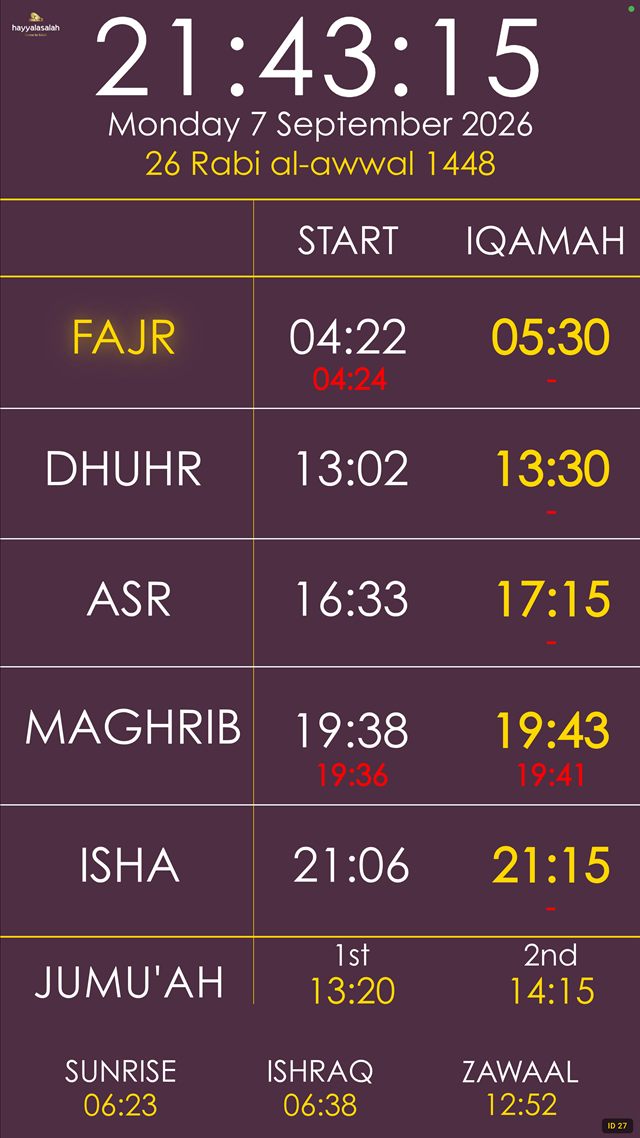
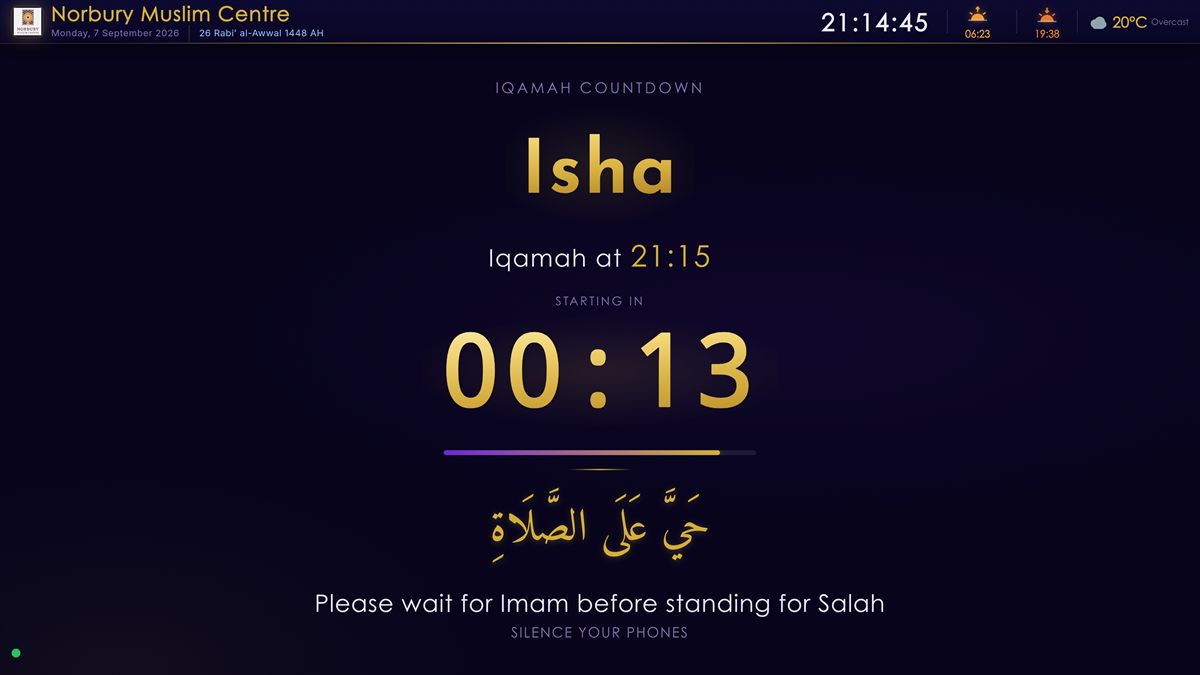
SalahScreen (Android Streaming Device) shows exactly the same portrait board as the first option, tuned for a streaming stick or dongle rather than a TV box.
They show the same portrait prayer board. They exist as two options because TV hardware turns a portrait picture onto a landscape panel in different ways: the first is tuned for an Android TV or box the app runs on directly, the second for a streaming device. In practice, pick the one that matches your hardware. If the board looks sideways or does not fill the screen on one, switch to the other with ⇄ Switch Screen Type, and use ⟳ Rotate Screen 90° to match how the TV is mounted.
The on-screen menu
Everything is controlled from one menu, driven by the remote. Press the right-arrow while the prayer or signage screen is showing. Move with ▲ / ▼, press OK to choose, and Back to close. The menu scrolls; the complete list, grouped below, runs from Manual Refresh down to Force Stop.
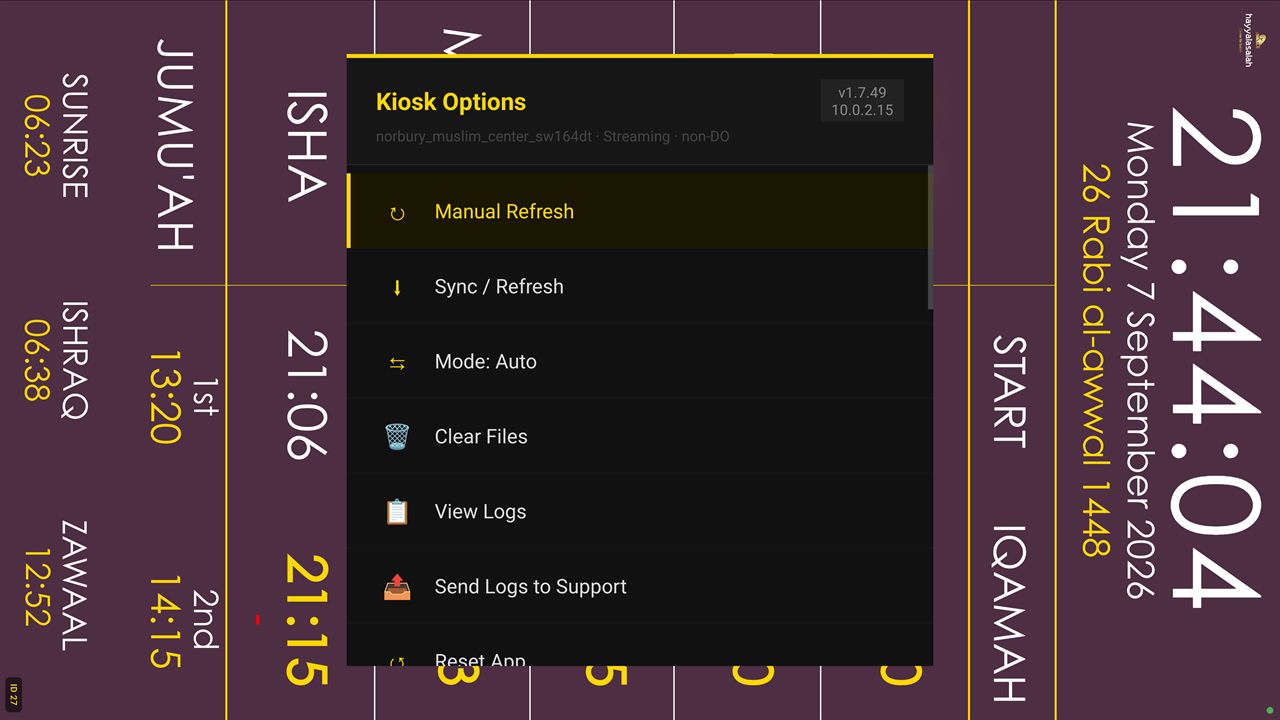
Content and data
| Option | What it does |
|---|---|
| ↻ Manual Refresh | Reloads the current page right now. |
| ↓ Sync / Refresh | Pulls the latest data. On a prayer screen it re-downloads prayer times; on Signage it rebuilds and re-downloads the display so a saved admin change shows immediately. |
| ⇆ Mode: Auto / Online / Offline | Where the screen gets its content. Auto — live when online, the on-device copy when not. Online — always the live site. Offline — always the on-device copy. |
| 🗑 Clear Files | Deletes the downloaded prayer and signage files so the next sync fetches everything fresh. |
Display and layout
| Option | What it does |
|---|---|
| 🖥 Display Settings | Opens the TV's own picture settings. If the edges are cut off, set the TV's picture size to Just Scan, Screen Fit or 1:1 here. |
| ⤢ Auto-fit to Screen | Re-fits the display to the TV's current resolution — handy right after changing the resolution. |
| ⟳ Rotate Screen 90° | Rotates the picture a quarter-turn each press (0° → 90° → 180° → 270°). Use it if the screen was mounted the wrong way round. |
| ☀ Brightness | Sets the screen brightness — Auto, or a fixed level from 100% down to 10%. |
| ⬛ Blank Screen | Turns the screen fully black — for when the masjid is closed. Press any key on the remote to wake it. |
| ☾ Schedule Dimmer | Automatically dims the screen between set times, for example overnight. |
Diagnostics and support
| Option | What it does |
|---|---|
| 🩺 Diagnostics Page | A full status page — app version, last sync, network and prayer state. Photograph it for a support ticket; press ▼ to leave. |
| 📱 Device ID | Shows this screen's unique ID. Quote it to the support team when you report a problem. |
| 🌐 Network Info | IP address, Wi-Fi name and signal, and whether the prayer and info servers are reachable. |
| 📋 View Logs | The last 48 hours of on-device activity. |
| 📤 Send Logs to Support | Uploads those logs to the support team so they can look into an issue remotely. |
| ◉ Toggle Diagnostics | Shows or hides a small status readout in the corner of the screen. |
System
| Option | What it does |
|---|---|
| 📶 WiFi Settings | Opens the TV's Wi-Fi settings to join or change a network. |
| ⚙ System Settings | Opens the TV's full Android settings. |
| ⬆ Check for Update | Checks for and installs a newer version of the app. |
| ⇄ Switch Screen Type | Goes back to the screen-type chooser — without wiping the mosque. |
| ↺ Reset App | Syncs the latest data, then restarts the app. |
| 🆕 Reset Mosque ID | Wipes the configured mosque and settings; the screen restarts and asks for a new Mosque ID. Kiosk lockdown stays in place. |
| ⏹ Force Stop | Quits the app. |
Locked kiosks only
This last group appears only on fully locked-down "Device Owner" kiosks; on ordinary installs these four are hidden.
| Option | What it does |
|---|---|
| 🔒 Pin to Hayya (Lock Task) | Locks the device to the app so Back and Home cannot leave it. Stays on across restarts. |
| 🔄 Re-apply Policies | Re-runs the full kiosk lockdown setup — safe to repeat. |
| ⏻ Reboot Device | Restarts the whole device. |
| ☠ Strip DO & Restore Defaults | Emergency only. Removes all kiosk lockdown and returns to a normal Android device. Asks for an admin code first. Use only if the kiosk is unrecoverable. |
Quick troubleshooting
The most common on-site fixes — all from the menu above.
| What you see | Try this |
|---|---|
| Edges of the picture are cut off | Open 🖥 Display Settings and set the TV's picture to Just Scan / Screen Fit, then ⤢ Auto-fit to Screen. |
| Prayer board is sideways or upside-down | ⟳ Rotate Screen 90° until it is upright — or try the other Salah type via ⇄ Switch Screen Type. |
| Content looks out of date | ↓ Sync / Refresh to pull the latest. Check the connection with 🌐 Network Info. |
| Screen is blank or frozen | ↻ Manual Refresh, then ↺ Reset App if needed. Send 📤 Send Logs to Support. |
| Moving this screen to another mosque | 🆕 Reset Mosque ID, then enter the new ID. |
| Reporting a fault to support | Read the ID from 📱 Device ID and run 📤 Send Logs to Support. |
Common questions
Does the screen keep working if the internet drops?
Yes. In Auto mode it switches to the copy saved on the device — prayer times, content and the day's images — and switches back to live when the connection returns. The copy is refreshed every night.
I changed something in my admin account — why is it not on the screen yet?
Screens pick up changes on their next check, normally within a minute. If you want it immediately, open the menu and choose ↓ Sync / Refresh.
How do I update the app?
Open the menu and choose ⬆ Check for Update. The screen installs the newer version and comes back on its own.
What is the dot in the corner?
A small green dot means the screen can reach the server; red means it cannot. A red dot is not an emergency — the screen keeps showing the saved copy until the connection returns.
Menu items match app v1.7.49. Locked-kiosk options depend on how the device was provisioned. When in doubt, note the Device ID and contact support.
Email nmctech1116@gmail.com with your Mosque ID (MSQ-XXXX) and the screen's Device ID from the menu.