Signage Admin
The Signage side of the admin panel — the hall display (also called the Info Screen). Identity and branding, the look of the screen, rotating content panels, ticker announcements, fundraising, Janazah, Ramadan and screen status. Open it from the Dashboard → Signage Display, or directly at /hayyalasalah/admin.php?section=signage.
Kiosk or Signage?
- Kiosk — the prayer-clock display near the prayer-hall entrance: prayer times, countdown, "Time for Salah", post-prayer adhkaar. Managed in Guide 03.
- Signage — the hall TV or large screen: prayer times along the bottom, plus rotating panels (Quran, Hadith, Du'a, history, images, your own text), a scrolling announcement ticker and seasonal content.
Both run from the same account and share the same prayer-time table. Everything in this guide is on the Signage admin page.
Layout overview
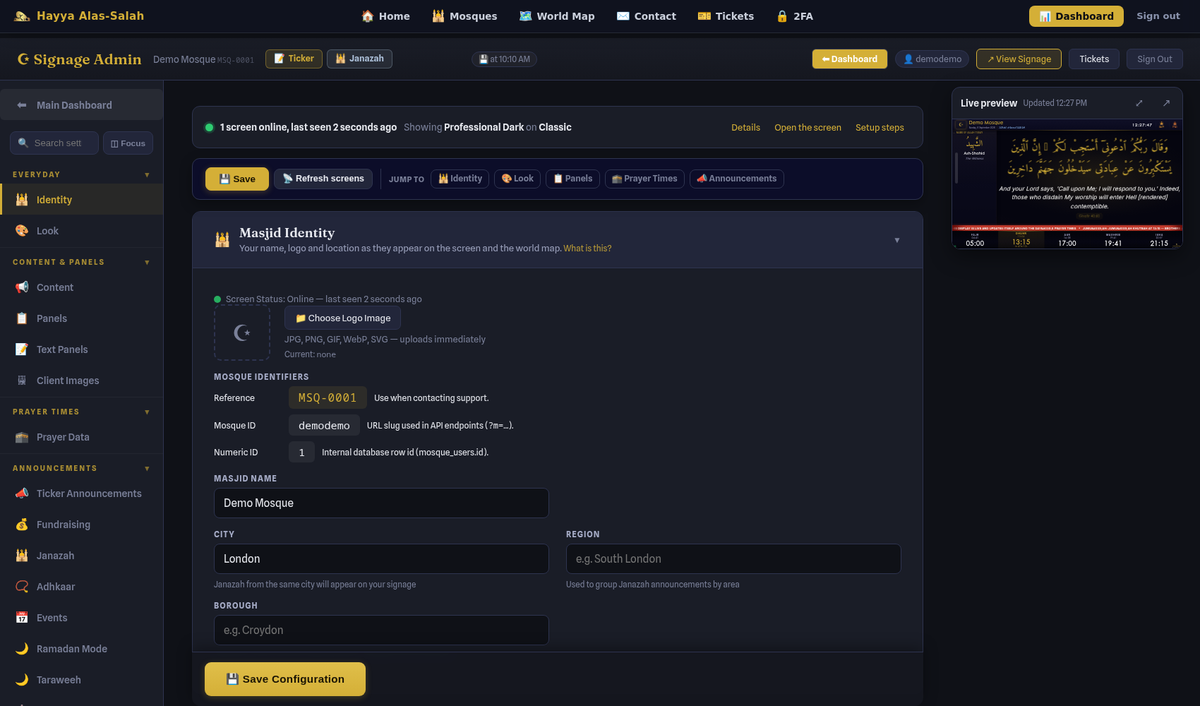
The page is a set of cards. The sidebar groups them; clicking an entry scrolls to that card. Every card starts with one plain sentence saying what it is for, and a What is this? link that opens the matching part of this guide. At the top of the sidebar, Search settings finds any field by name (see Finding a setting) and ◫ Focus shows one card at a time instead of the whole page.
| Group | Cards |
|---|---|
| Everyday | Identity · Look |
| Content & Panels | Content · Panels · Text Panels · Client Images |
| Prayer Times | Prayer Data |
| Announcements | Ticker Announcements · Fundraising · Janazah · Events · Ramadan Mode · Taraweeh · Ramadan Assistant |
| Advanced & Tools | Zones · Screen Status · View Signage · User Guide |
The configuration cards (Identity, Look, Content, Prayer Data, Panels, Text Panels) save themselves about a second after you change something, and the 💾 Save Configuration bar at the bottom of the screen saves them all at once. A gold dot appears in the sidebar next to any card with edits that have not been saved yet. The list cards — announcements, campaigns, Janazah, events, images, zones, Ramadan and Taraweeh — save each item as you add or edit it and show a green Saved just now chip in their header when they do. After a change, 📡 Refresh screens pushes a reload to every live screen for your mosque.
The status strip and setup steps

The strip refreshes every minute and turns amber when a screen stops checking in and red when it has been away for more than ten minutes. Details jumps to the Screen Status card and Open the screen opens your signage in a new tab.
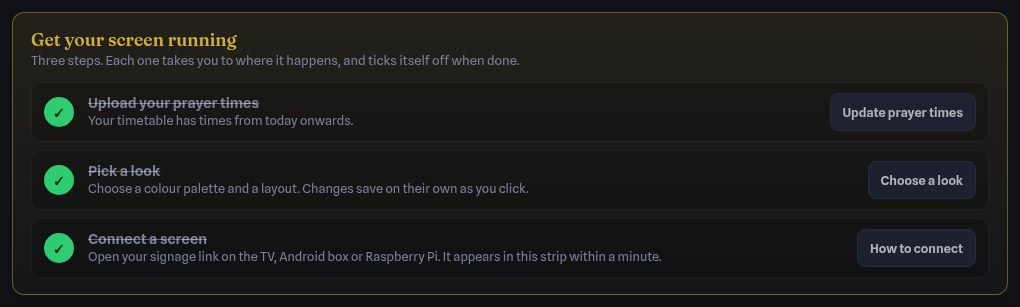
Each step takes you to where it happens and ticks itself off from real data: the timetable has times from today onwards, a look has been chosen, a screen has connected.
Live preview
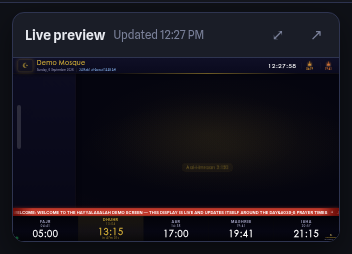
On screens 1600px wide or more the preview sits on the right and follows you down the page. Drag its left edge to make it any size you like — the cards make room — and double-click the edge to put it back. ⤢ opens a full-size view (press it again to return) and ↗ opens the screen in a new tab. On smaller screens use Open the screen in the status strip instead. The preview is never counted as a connected screen.
Finding a setting, and undoing a change
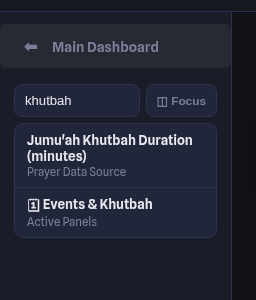

Undo puts the configuration cards back to how they were before your recent burst of edits, not just the last click. After an undo the same button reads Redo, so nothing is lost by trying it. The self-saving cards show their own confirmation instead:

Identity
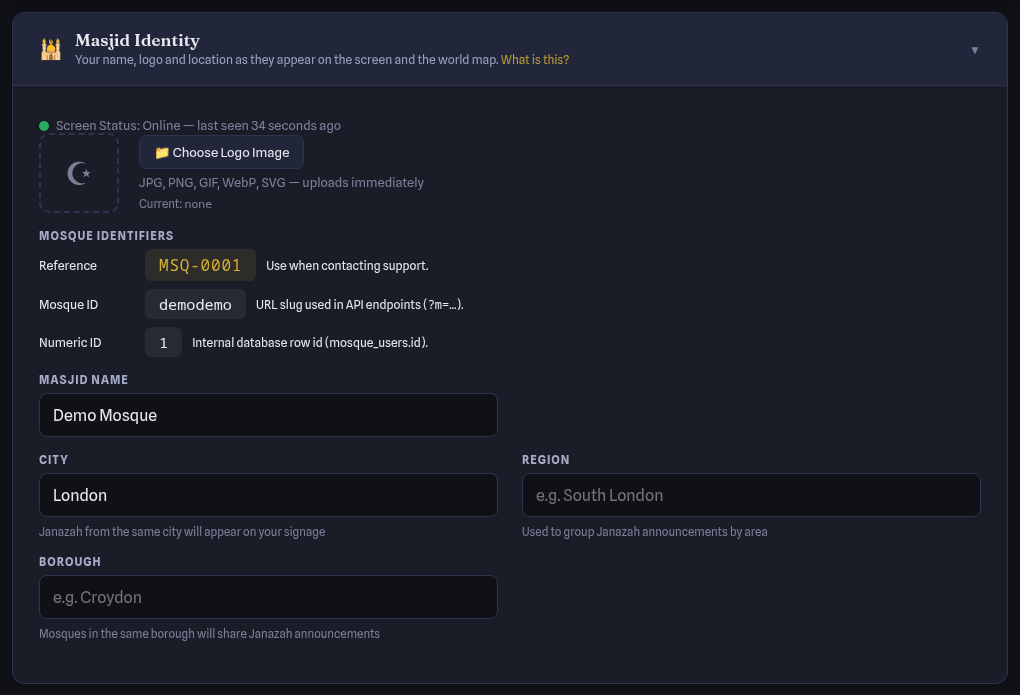
- Screen status line — whether a screen is online and when it last checked in.
- Logo — Choose Logo Image uploads immediately (JPG, PNG, GIF, WebP or SVG). Used on both the signage and the kiosk.
- Mosque ID — your MSQ-… identifier: sign in with it, enter it on screens and quote it to support. Read-only. Developers can expand Technical keys for the URL key and numeric id.
- Masjid name, City, Region, Borough — the name appears in the header of every screen; city and borough decide which nearby mosques' Janazah announcements you see.
Look: layout, palette and colours
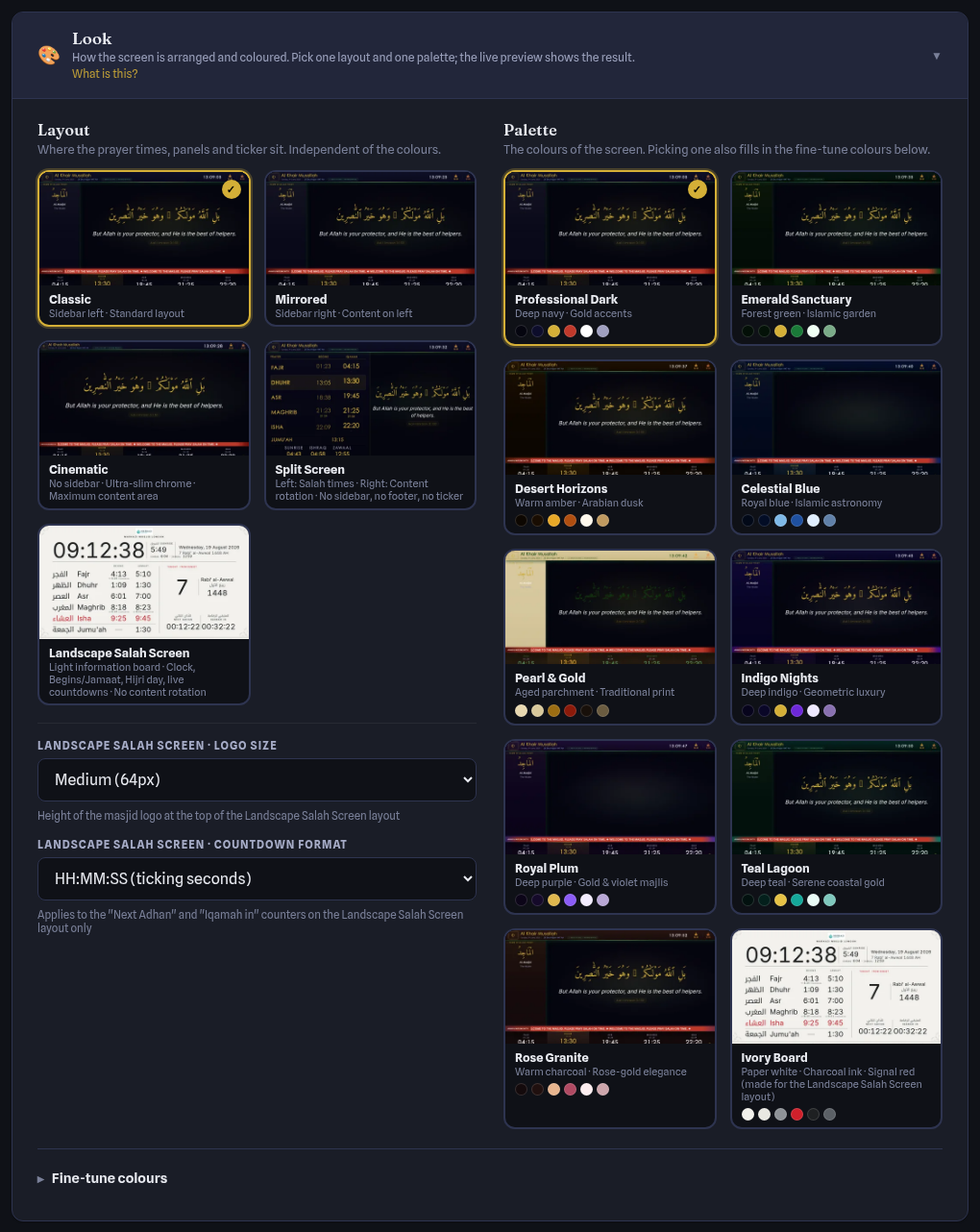
Layout decides how the screen is arranged: Classic (sidebar left, content right), Mirrored (sidebar right), Cinematic (no sidebar, slim header and footer, large full-bleed content), Split Screen and Landscape Salah Screen (a light information board with its own logo-size and countdown-format options, which appear under the layouts when it is chosen).
Palette offers ten presets — Professional Dark, Emerald Sanctuary, Desert Horizons, Celestial Blue, Pearl & Gold, Indigo Nights, Royal Plum, Teal Lagoon, Rose Granite and Ivory Board (paper white, made for the Landscape Salah Screen layout). Layout and palette are independent, so any palette works with any layout. Both save on their own as you click.
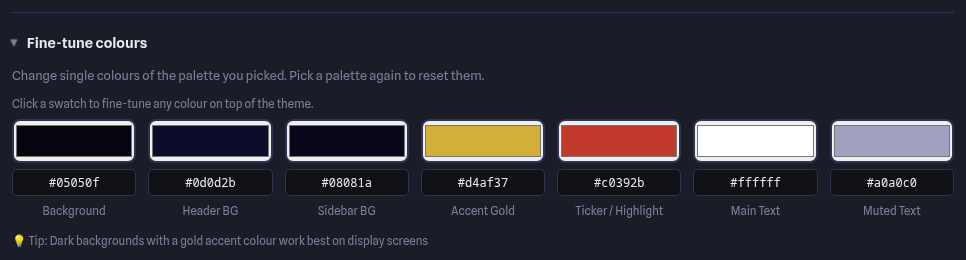
Open Fine-tune colours to change single colours of the palette you picked: background, header, sidebar, accent gold, ticker and highlight, main text and muted text. Picking a palette again resets them.
Display timing
Timing now lives inside the cards it belongs to rather than in cards of its own. The Timing block at the bottom of Display Content holds the panel rotation time, the two slide intervals and the ticker speed; the Timing block at the bottom of Prayer Data Source holds everything about the prayer screens. Both are shown in the sections below.
Content and panels
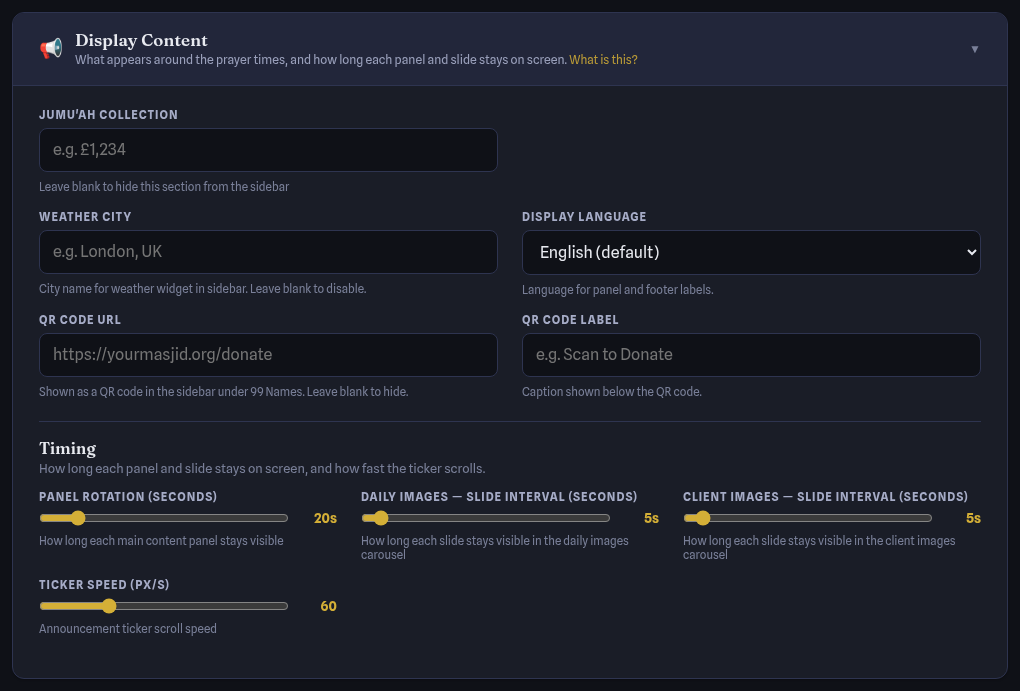
- Jumu'ah collection — last Friday's collection figure for the sidebar; leave blank to hide.
- Weather city — enables the weather widget; blank to disable.
- Display language — language for panel and footer labels.
- QR code URL / label — a donation (or any) link rendered as a QR code in the sidebar.
- Timing — Panel rotation is how many seconds each content panel stays on screen; the two slide interval sliders are seconds per picture inside the image carousels; Ticker speed is how fast the announcement ticker scrolls.
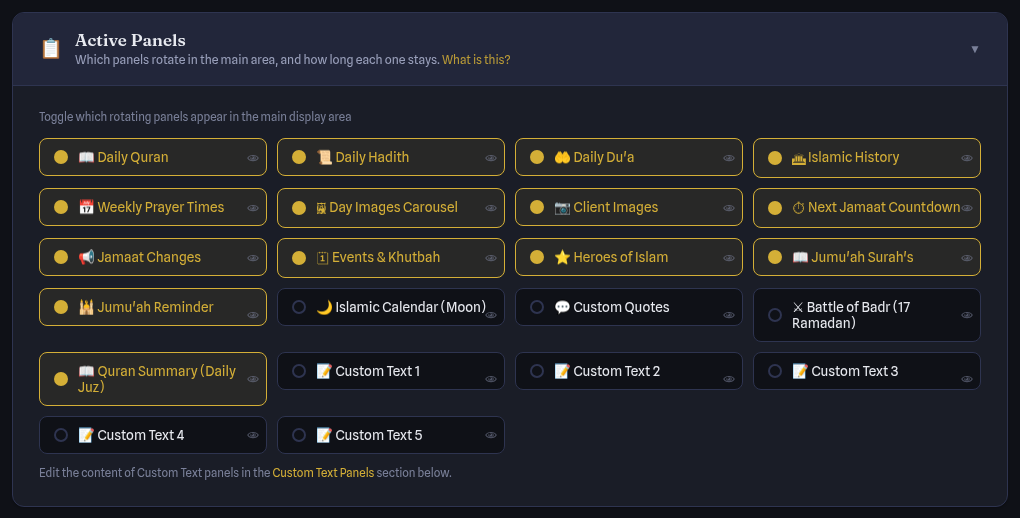
Panels lists everything the signage can rotate through: Daily Quran, Daily Hadith, Daily Du'a, Islamic History, Weekly Prayer Times, Day Images carousel, Client Images, Next Jamaat countdown, Jamaat Changes, Events & Khutbah, Heroes of Islam, Jumu'ah Surahs, Jumu'ah reminder, Islamic Calendar (moon), Custom Quotes, Battle of Badr (17 Ramadan), Quran Summary (Daily Juz) and up to five Custom Text panels. Tick the ones you want. Every panel stays on screen for the panel rotation time set in Display Content › Timing; text-heavy panels stretch automatically to a comfortable reading time.
Quran, Hadith and Du'a content is curated by the platform and filtered by season — Ramadan, Eid, Dhul-Hijjah and Fridays (Surah Al-Kahf) get appropriate verses automatically.
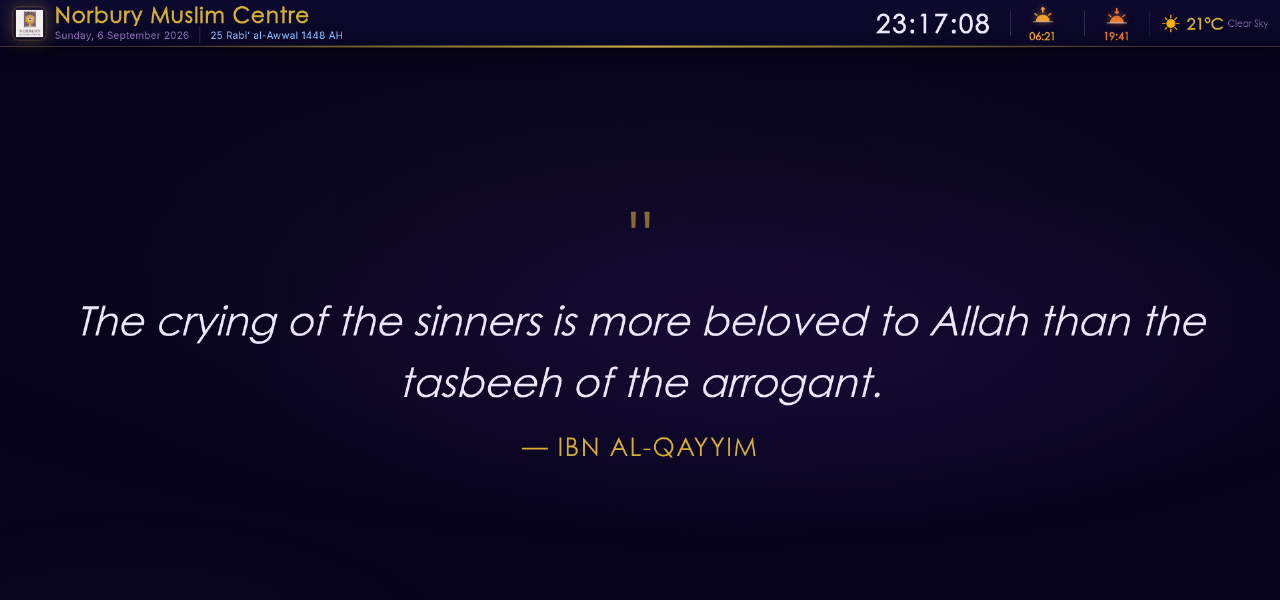
Islamic Quotes shows one quote each time the panel comes round and works through the whole library in order. The screen remembers where it got to, so a reload or an overnight restart carries on from the next quote rather than starting again — every quote gets its turn before the list begins afresh.
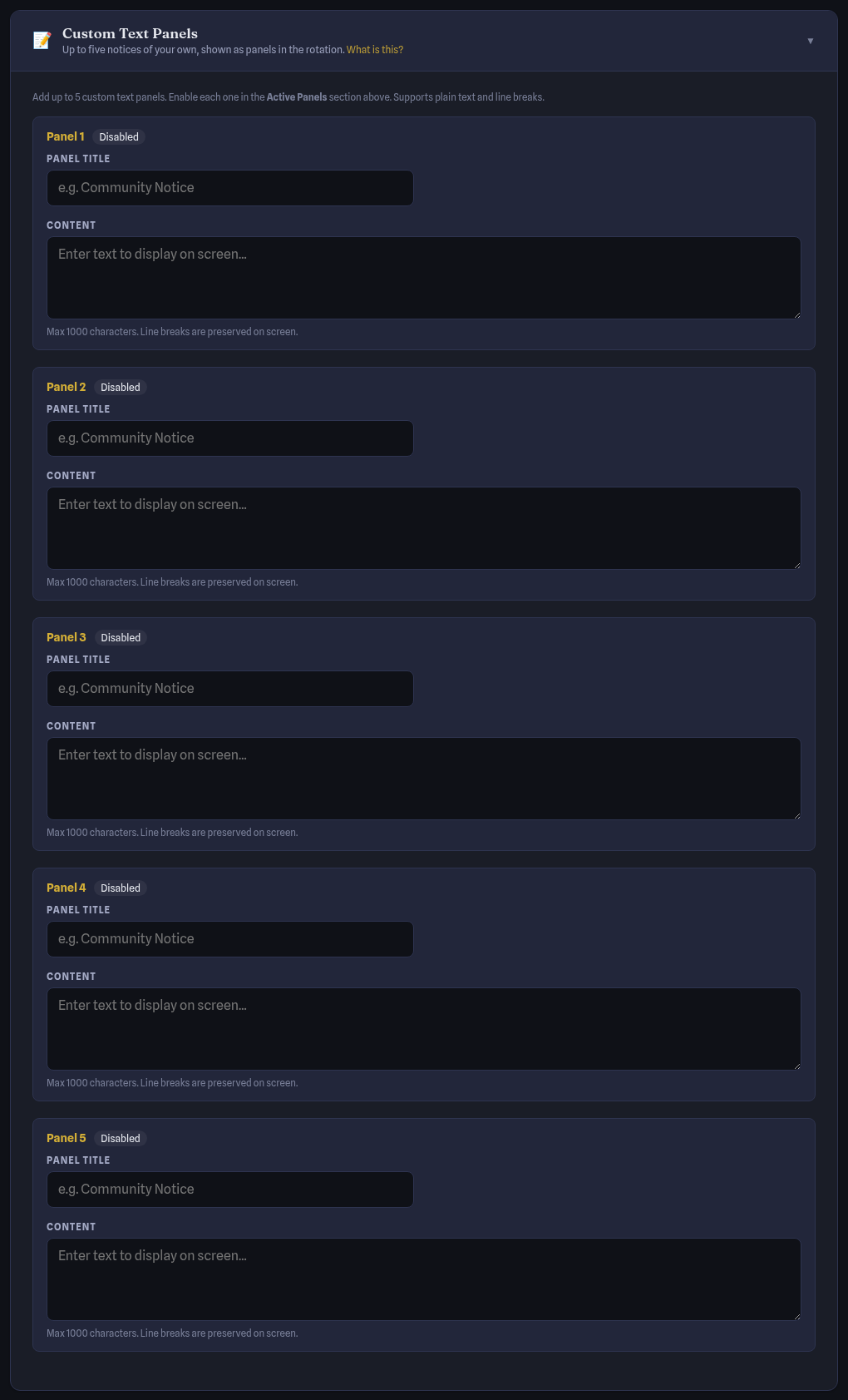
Text Panels are your own full-screen messages — Eid salah times, class schedules, parking notices. Give each a title and body (up to 500 characters), then enable it in Active Panels so it joins the rotation.
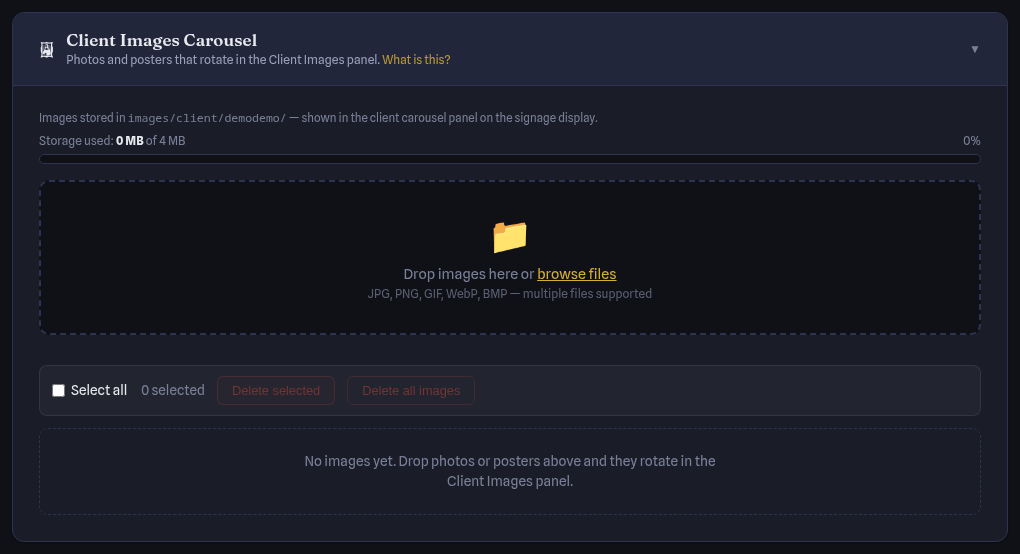
Client Images is your own image carousel — event posters, building photos, sponsor slides. Drag JPG, PNG, GIF, WebP or SVG files onto the box (or browse files); select and delete from the same card. Enable the Client Images panel to show them.
Prayer times on the signage
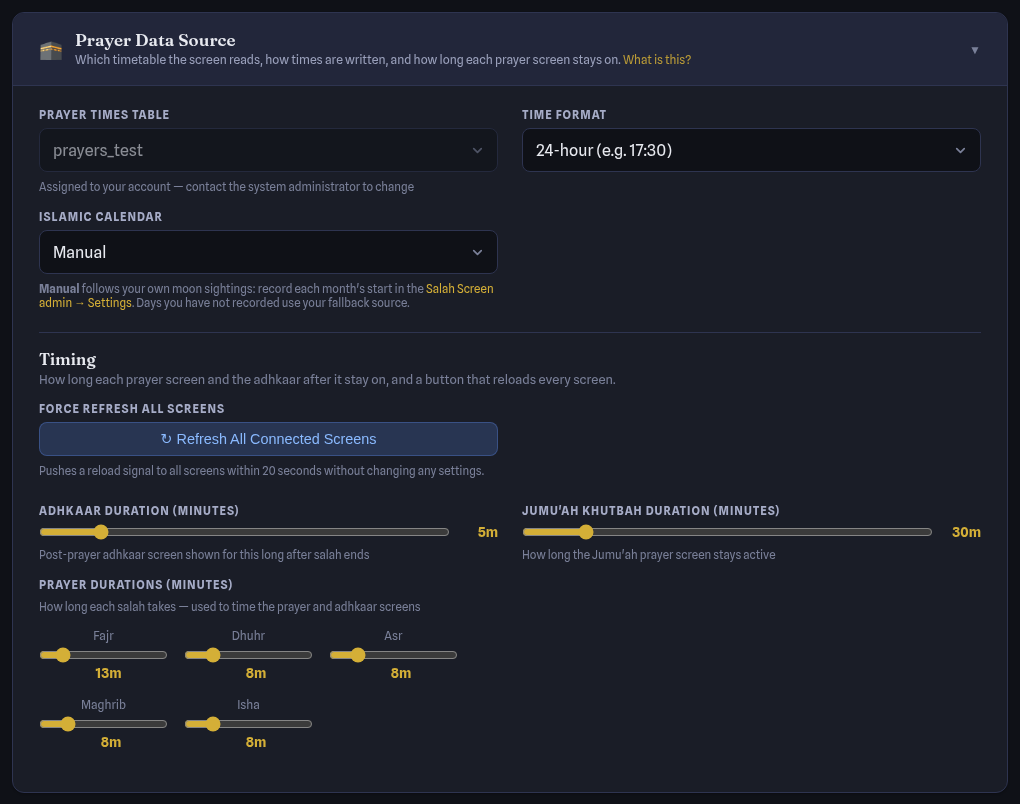
- Prayer times table — the table assigned to your account (read-only) and the time format (24- or 12-hour).
- Islamic calendar — the Hijri source both your kiosk and signage follow: Umm al-Qura (calculated), Moonsighting (moonsighting.org.uk), Wifaq ul-Ulama (UK), AlAdhan, newcrescentsociety.org (UK) or Manual. Manual follows your own moon sightings; you record each month's start in the Kiosk admin's Settings page (Guide 03 — Moon Sighting), and the card shows a link there. Days you have not recorded use your fallback source.
- Your timezone — prayer states, the Hijri date, the day's images and the daily content are all worked out in your mosque's own timezone (set when you registered), so a screen outside the UK is right from its own midnight, not London's.
- Timing — ↻ Refresh All Connected Screens pushes a reload without changing anything; Adhkaar duration is the post-prayer screen, Jumu'ah khutbah duration the Friday screen, and there is a duration per prayer (Fajr, Dhuhr, Asr, Maghrib, Isha) used to time the prayer and adhkaar screens.
Ticker announcements
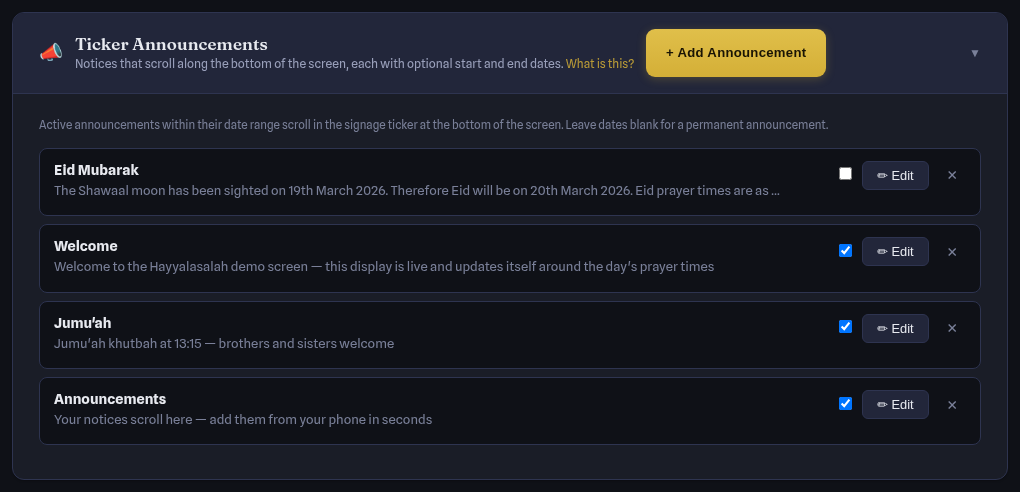
Announcements scroll in the ticker strip at the bottom of the signage. Click + Add Announcement, enter a title and message, and optionally a from / until date range — leave the dates blank for a permanent notice. Each row has a tick box to pause it without deleting, an Edit button and a delete ×. Items past their end date show an EXPIRED badge and drop out of the ticker automatically.
Keep messages to one line — the ticker joins them with a ◆ separator. If you have no announcements, the ticker shows gentle defaults (silence phones, straighten the rows). The same announcements also feed your mobile-app followers.
Fundraising, Janazah and Events
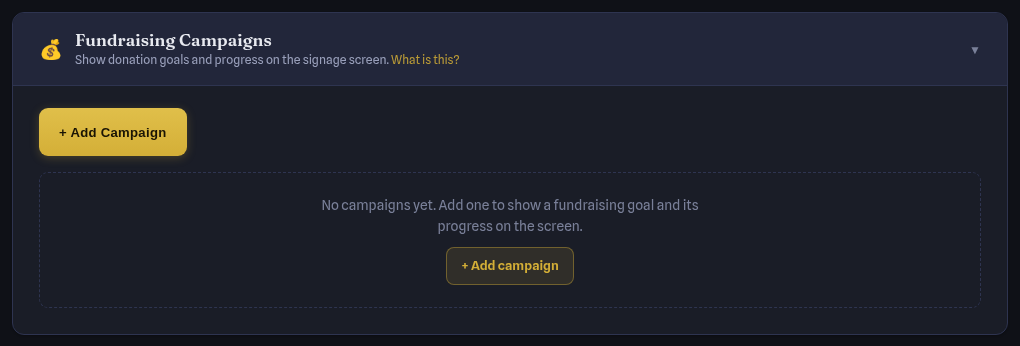
- Fundraising Campaigns — + Add Campaign with a name, target and amount raised; the screen shows the percentage and a progress bar. Update the amount as donations come in.
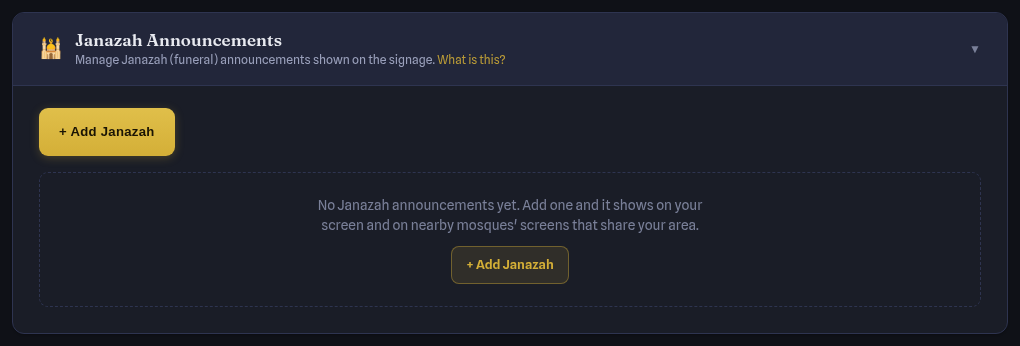
- Janazah Announcements — + Add Janazah with the name, gender, date and time, venue and burial place. Activate puts it on screen; nearby mosques in the same city or borough see it too, and yours shows theirs.
- Post-Salah Adhkaar — the adhkaar screen after each prayer uses the built-in set (Astaghfirullah, Tasbih, Ayatul Kursi, the three Quls…) and needs no setting up. How long it stays on screen is Adhkaar duration in the Prayer Data card's Timing block.
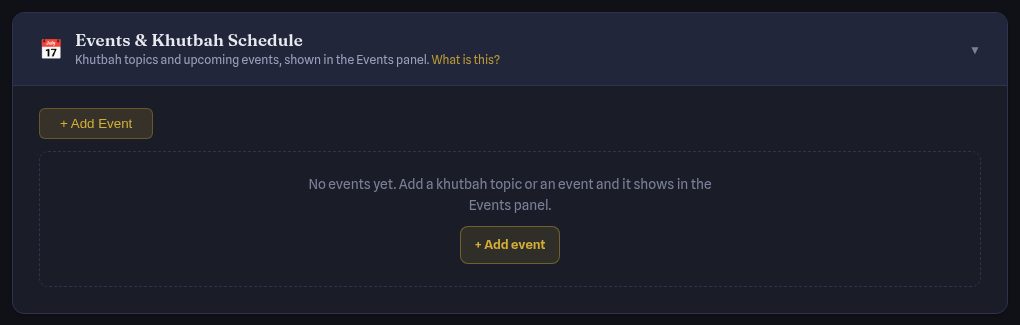
- Events & Khutbah Schedule — + Add Event with a date, time, title and location. Past events fade out; upcoming ones appear in the Events panel.
Ramadan and Taraweeh
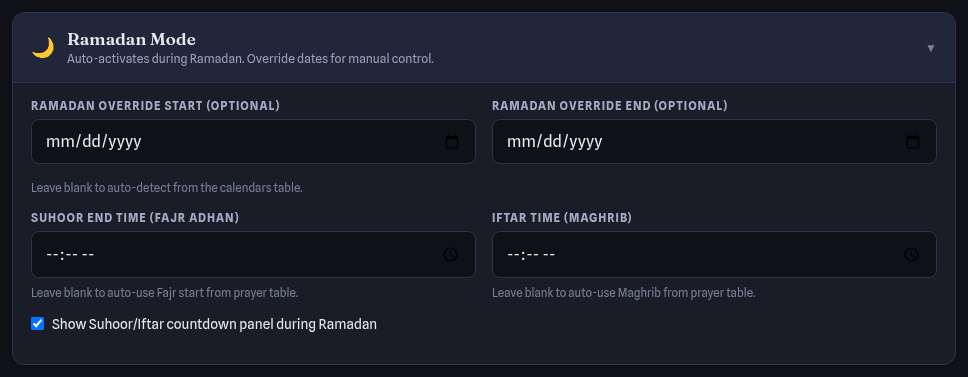
- Ramadan Mode activates automatically from your calendar source. If your community follows a different moon-sighting, set Override start / end. Suhoor end and Iftar default to Fajr and Maghrib from your prayer table; tick Show Suhoor/Iftar countdown panel for the countdown.
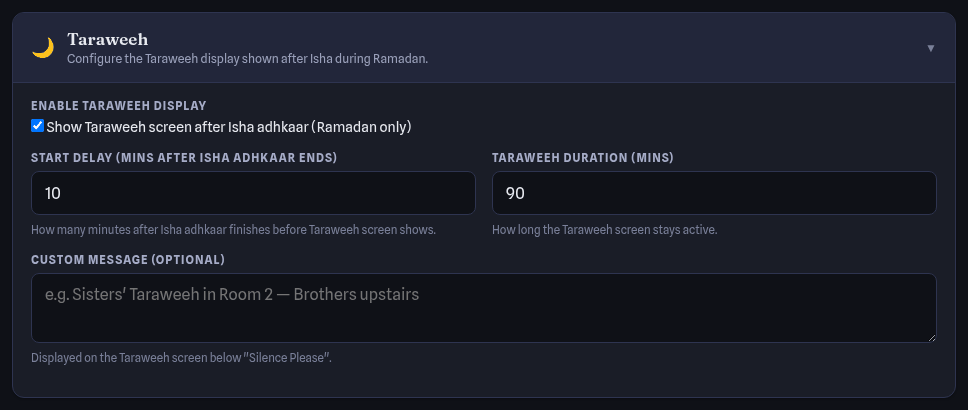
- Taraweeh — enable the screen shown after Isha adhkaar during Ramadan, set the start delay (minutes after Isha adhkaar ends), the duration, and an optional message such as Sisters' Taraweeh in Room 2.
- Ramadan Assistant — a guided helper (own page) that walks through the Ramadan timetable, Taraweeh and Eid settings step by step.
Seasonal content that just happens
You do not need to schedule any of this — it follows the Hijri calendar you chose:
| Event | When | Display |
|---|---|---|
| Ramadan | 1–30 Ramadan | Suhoor + Iftar countdown, Taraweeh screen after Isha, Ramadan verses |
| Last 10 nights | 21–30 Ramadan | Laylatul Qadr emphasis, Qiyam content |
| Eid al-Fitr | 1 Shawwal | Eid greetings, Takbir al-Tashriq |
| Dhul-Hijjah | 1–13 Dhul-Hijjah | Hajj content, "Best 10 Days" counter, Day of Arafah, Eid al-Adha |
| Sacred months | Muharram, Rajab, Dhul-Qa'dah, Dhul-Hijjah | Sacred-month badge and verses; Ashura reminders |
| Friday | Every Friday | Surah Al-Kahf rotation, Salawat reminders, khutbah countdown |
| White days & moon | 13–15 of each month | Moon-phase panel and fasting reminder |
Zones and screen status
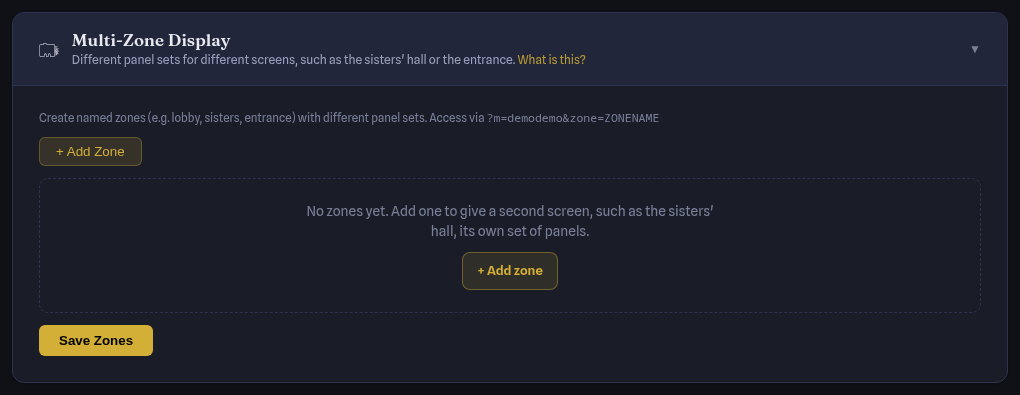
- Multi-Zone Display — if you have several screens (lobby, sisters' hall, entrance) that should not all show the same thing, create a named zone for each. A zone chooses its own panels and, if you want, its own layout and colours, so the entrance board can look quite different from the main hall. Leave the layout and colours on Same as main screen and the zone follows your main settings, including any colours you fine-tuned.
- Pointing a screen at a zone — each zone shows its own address in the card. Copy it, then open that address on the screen in question (or set it as the screen's URL when you install it). A screen opened without a zone shows your main settings, exactly as before.
- Worth knowing — a zone that lists its own panels shows only those panels, so seasonal and event panels such as a janazah notice will not appear on it. The Landscape Salah Screen layout is a fixed board with no rotating panels at all, and it pairs itself with the light Ivory Board palette. If a screen loses its internet connection it falls back to the offline copy, which currently carries the mosque's main look rather than the zone's.
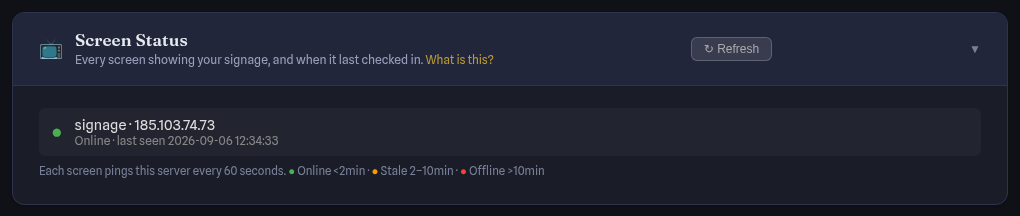
- Screen Status — each connected screen reports in with every status check — at least once a minute, more often around prayer times. Green = online (seen in the last 2 minutes), amber = stale (2–10 minutes), red = offline (over 10 minutes). Click Refresh to re-check.
Connecting a screen
Open the signage URL on the device
Browser, Android TV app or pre-flashed Raspberry Pi:
info.hayyalasalah.co.uk/?m=72(the number from your Mosque ID) (the kiosk usesscreen.hayyalasalah.co.uk/?m=…). ↗ View Signage in the sidebar opens yours.The device registers itself
It appears in the status strip at the top of the page, and in Screen Status, within a minute. The Connect a screen setup step ticks itself off.
Push changes
Whenever you change something, 📡 Refresh screens reloads every screen. Day-to-day operation of the device itself — the on-screen menu, WiFi, orientation — is in Guide 06.
Every night at 02:30 the platform rebuilds your screen's offline package — prayer times, content, and every weekday and seasonal image — and Android TV, Linux and Raspberry Pi devices collect it in the small hours. They fetch only what changed, normally well under a megabyte, so the download never gets in the way. If the internet drops, the device still switches to the correct day's images, and to the Ramadan or Dhul-Hijjah sets, by itself.
On a phone or tablet
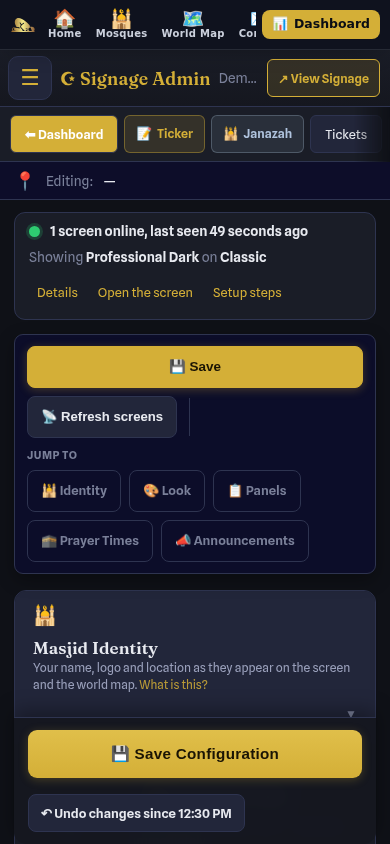
Everything in this guide works on a phone or tablet. The sidebar becomes a drawer behind the ☰ button, the cards stack in one column, and the Editing bar under the top bar tells you which card you are in. The live preview is replaced by Open the screen in the status strip.
Power tips
Can I preview a seasonal panel without waiting for it?
Yes — add ?preview_state=<state> to the kiosk URL, e.g. screen.hayyalasalah.co.uk/?m=YOUR_ID&preview_state=eid. Replace eid with taraweeh, ishraq, qiyam, and so on.
How do I show one panel more (or less) often?
Panels rotate in order and share the panel rotation time in Display Content › Timing. Untick anything you do not want at all; for a message that must be seen, a Custom Text panel or a ticker announcement is the surest way.
Can I add my own Quran verses or hadith?
Not directly — the Quran, Hadith and Du'a libraries are platform-curated. Use a Custom Text panel for a specific verse your community wants, or email us and we will add it to the library.
Is there a way to test an announcement before it goes live?
Add it with today as both the from and until date and watch the live preview beside the cards (or Open the screen from the status strip). Then edit the dates to the real range.
The screen shows an old announcement or the wrong theme
Click 📡 Refresh screens in the quick-action bar. If it still lags after a minute, look at the status strip — an offline screen keeps showing what it cached until it reconnects. If you changed something by mistake, Undo changes since … in the save bar puts the configuration back.