Kiosk Admin
The Kiosk side of the admin panel — the prayer-clock display. Prayer times, bulk edits, the website widget, display settings, Jumu'ah, Ramadan, themes, the Imam Bot Beta, printed timetables and data bundles. Open it from the Dashboard → Salah Screen, or directly at /hayyalasalah/admin.php?section=kiosk.
Layout overview
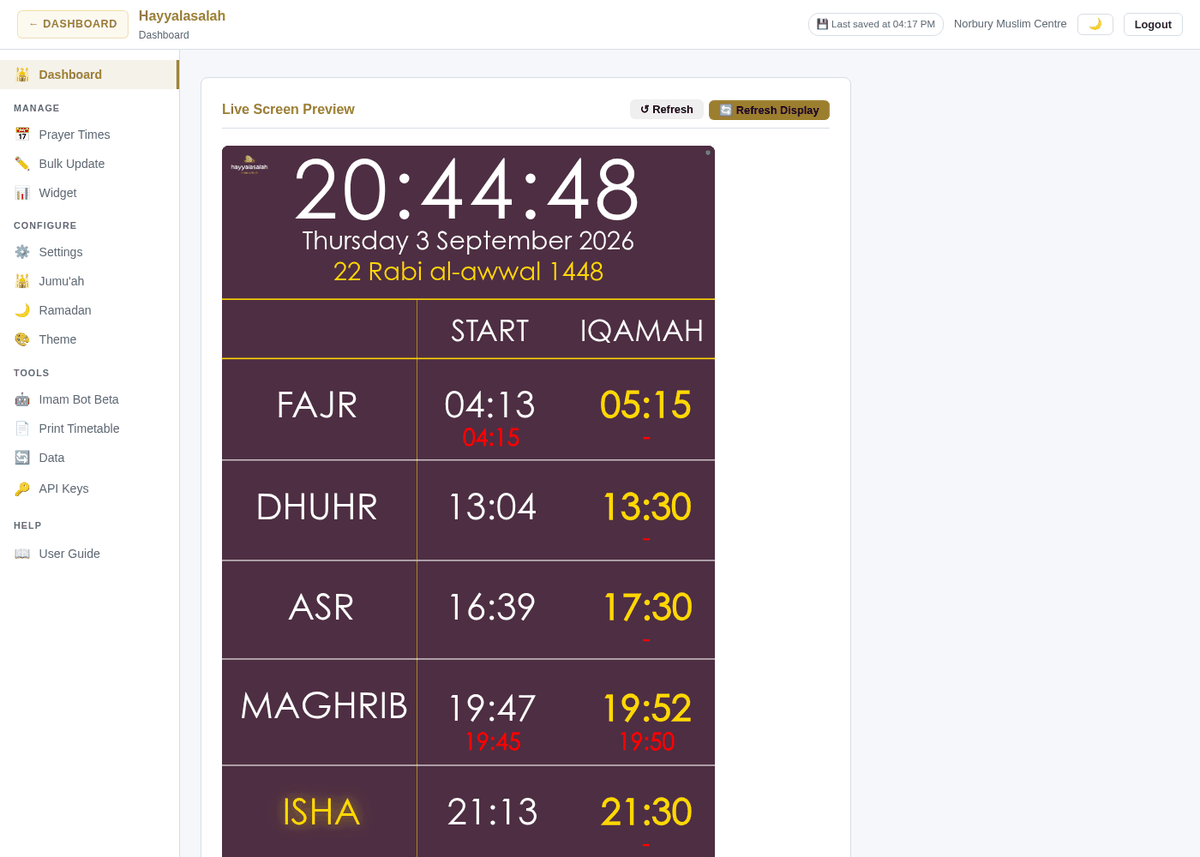
The sidebar groups twelve pages into four sections. Clicking a page swaps the content area without reloading.
| Group | Pages |
|---|---|
| Dashboard | Live Screen Preview + this week's prayer times |
| Manage | Prayer Times · Bulk Update · Widget |
| Configure | Settings · Jumu'ah · Ramadan · Theme |
| Tools | Imam Bot Beta · Print Timetable · Data · API Keys |
| Help | User Guide (this site) |
The header shows a 💾 Last saved at HH:MM chip (when your most recent change was committed), your mosque name, a 🌙 dark-mode toggle and Logout. ← Dashboard returns you to the main Dashboard.
Dashboard
- Live Screen Preview — your kiosk exactly as the wall display shows it. ↻ Refresh reloads the preview; 🔄 Refresh Display tells the real screens to reload.
- This Week's Prayer Times — seven days of Begins and Jamaat times at a glance, today highlighted.
While editing in another tab, leave the Dashboard open in a second browser tab — changes appear in the preview within about 30 seconds, so you can check them before anyone at the mosque notices.
Prayer Times
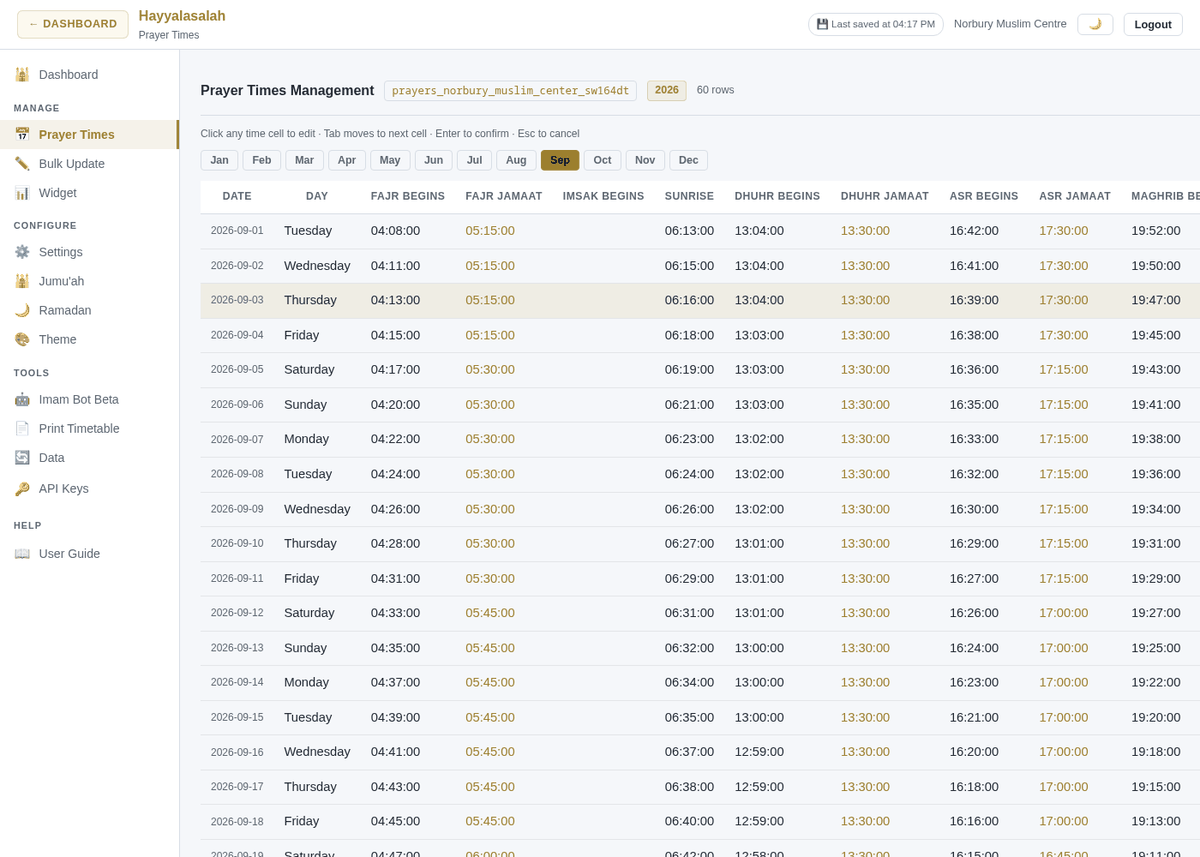
The most-used page. The header shows which prayer table you are editing, the year and the number of rows. Columns: Date, Day, Fajr Begins / Jamaat, Imsak Begins, Sunrise, Dhuhr Begins / Jamaat, Asr Begins / Jamaat, Maghrib Begins / Jamaat, Isha Begins / Jamaat, Jumu'ah 1 / 2.
Inline edit
Click any time cell, type the new value in 24-hour HH:MM (or HH:MM:SS), then press Enter to confirm, Tab to confirm and move to the next cell, or Esc to cancel. A saved cell flashes green.
Navigating the year
Use the month tabs (Jan … Dec) to jump around the year. The current month is selected when the page opens and today's row is shaded.
For "set Isha Jamaat to 21:00 for all of July" use Bulk Update; for "shift Fajr +5 next week" the Imam Bot Beta is quickest. To replace the whole table from a spreadsheet, use the Imam Bot's file parser or the CSV import.
Bulk Update
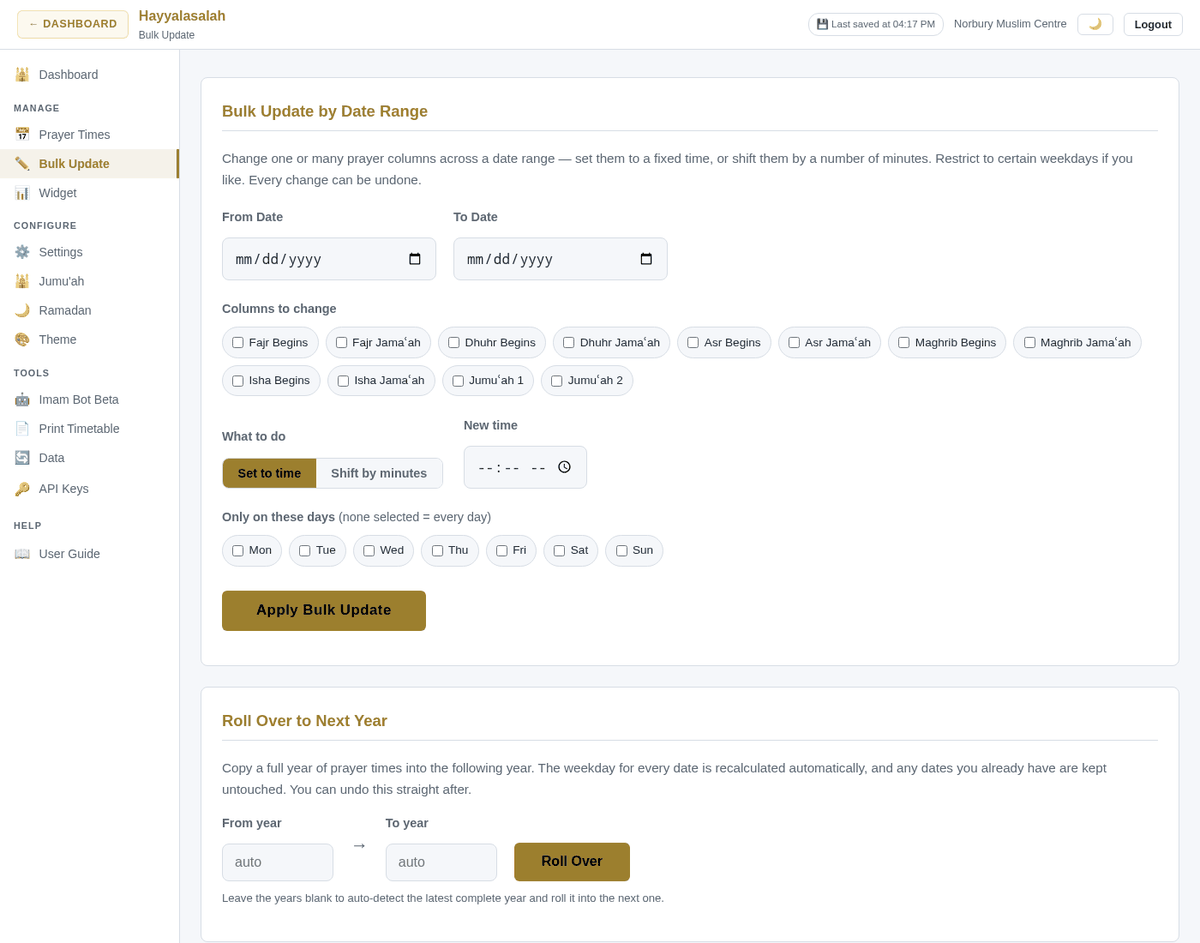
Bulk Update by Date Range changes one or many columns across a range of dates:
- From date / To date — the range to affect.
- Columns to change — tick any of Fajr, Dhuhr, Asr, Maghrib, Isha (Begins or Jamaʿah) and Jumuʿah 1 / 2.
- What to do — Set to time (enter the new time) or Shift by minutes (enter + or − minutes).
- Only on these days — restrict to certain weekdays; leave all unticked for every day.
Click Apply Bulk Update and confirm. Every bulk change takes a snapshot first, so it can be undone from the Imam Bot page.
Roll Over to Next Year copies a full year of prayer times into the following year. Weekdays are recalculated for the new dates and any dates you already have are left untouched. Pick From year and To year, click Roll Over, then edit the new year as needed.
Widget
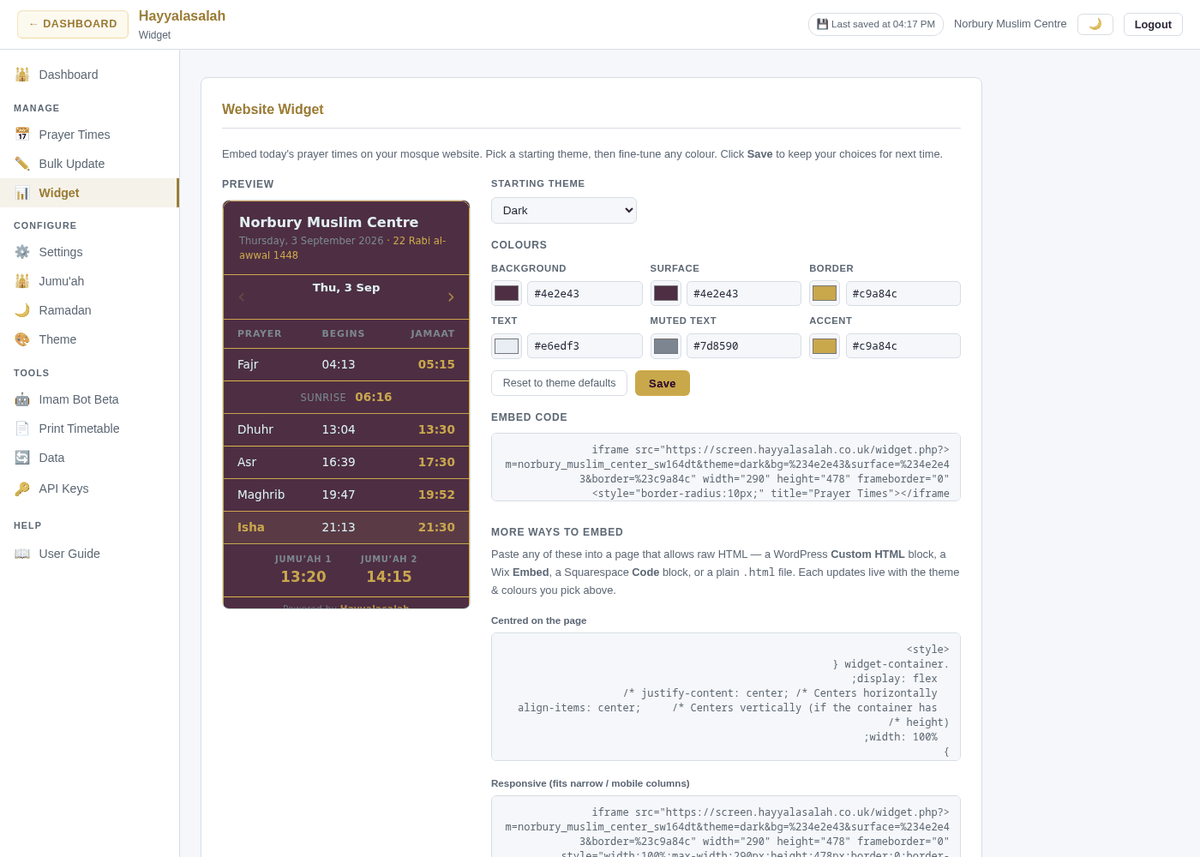
Generates a small HTML snippet that shows today's prayer times on your mosque's own website. Choose a starting theme, adjust the colours (background, surface, accent, text), then copy the Embed code (fixed size) or the Responsive version (fits narrow columns) into your site.
The Developer API section below the widget explains how to pull your prayer times as JSON or CSV for your own apps. Keys are managed on the API Keys page — see Guide 05.
Settings
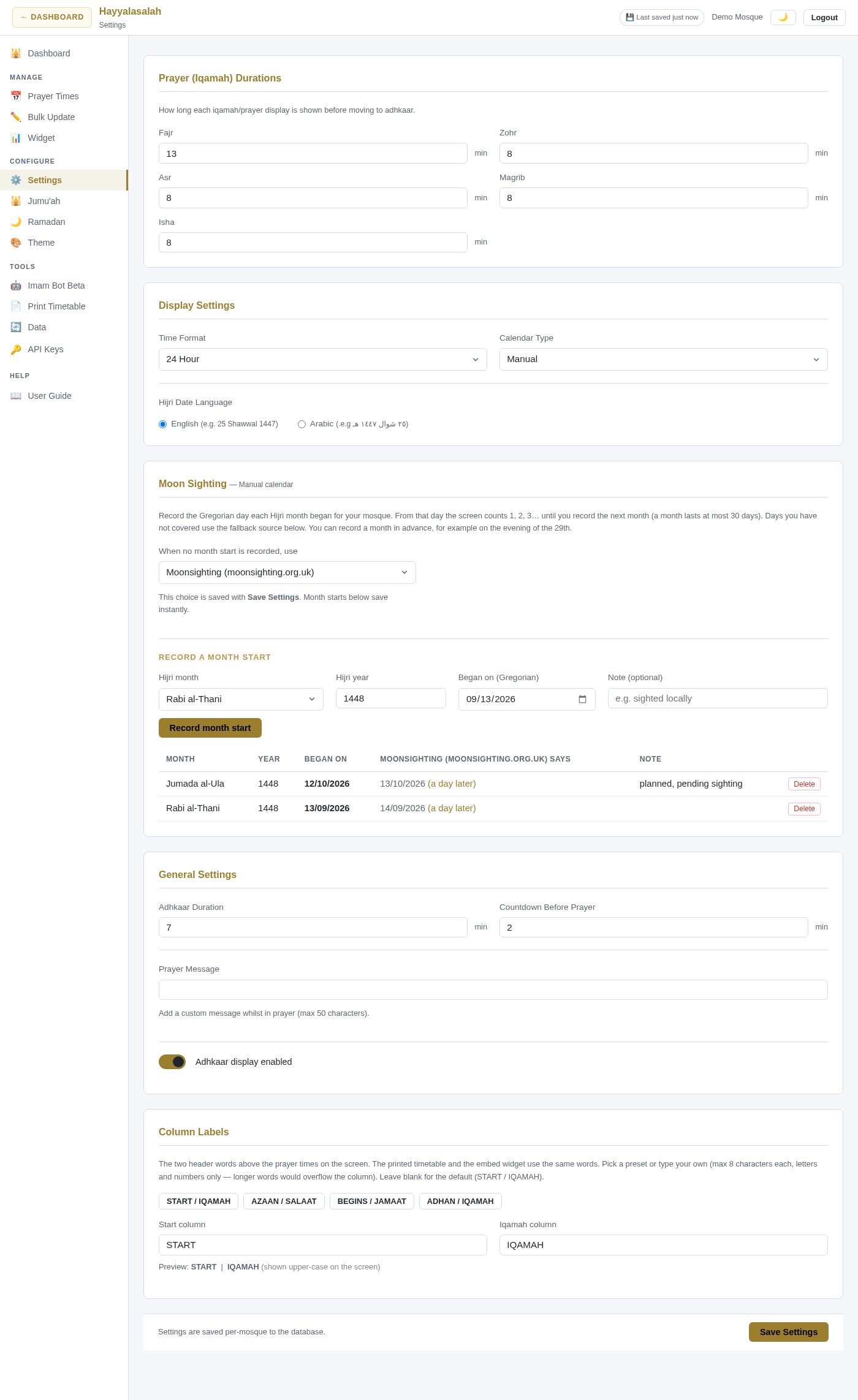
- Prayer (Iqamah) Durations — for each of Fajr, Zohr, Asr, Magrib and Isha, how many minutes the "Time for Salah" screen stays up before the display moves on to adhkaar.
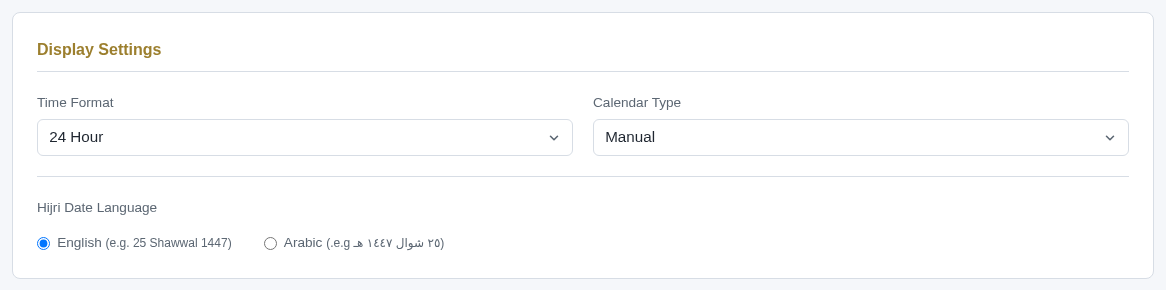
- Time Format — 24-hour or 12-hour clock.
- Calendar Type — which Hijri calendar the screen follows. This drives the Hijri date, the printed timetable and all seasonal behaviour (Ramadan, Eid, Dhul Hijjah). See Calendar Type below for the six choices.
- Hijri Date Language — English (25 Shawwal 1447) or Arabic.
- Adhkaar Duration — minutes the post-prayer dhikr screen is shown.
- Countdown Before Prayer — minutes before Iqamah at which the countdown appears.
- Prayer Message — an optional line shown during prayer (max 50 characters), e.g. Please switch off mobile phones.
- Adhkaar display enabled — switch the dhikr screen off entirely.
- Column Labels — the two header words above the prayer times. See Column Labels below.
Click Save Settings. Screens pick the change up within about a minute.
Calendar Type
| Choice | What it follows |
|---|---|
| Umm al-Qura (calculated) | The Saudi civil calendar, calculated in advance. The default. |
| Moonsighting (moonsighting.org.uk) | UK local moon-sighting announcements, refreshed several times a day around each month end. |
| Wifaq ul-Ulama (UK) | The Wifaqul Ulama Britain Hijri date, refreshed daily. |
| AlAdhan | The AlAdhan calculated calendar. |
| newcrescentsociety.org (UK) | The New Crescent Society's observation-based UK calendar, refreshed three times a day. |
| Manual | Your own mosque's moon sightings, which you record month by month in the Moon Sighting card. Days you have not recorded yet use the fallback source you choose there. |
The automatic sources are kept up to date by the platform. When a source announces a sighting that differs from what was projected, the projection is overwritten on the next refresh, so a month that starts a day later than expected corrects itself, including the day that has already passed.
Moon Sighting (Manual calendar)
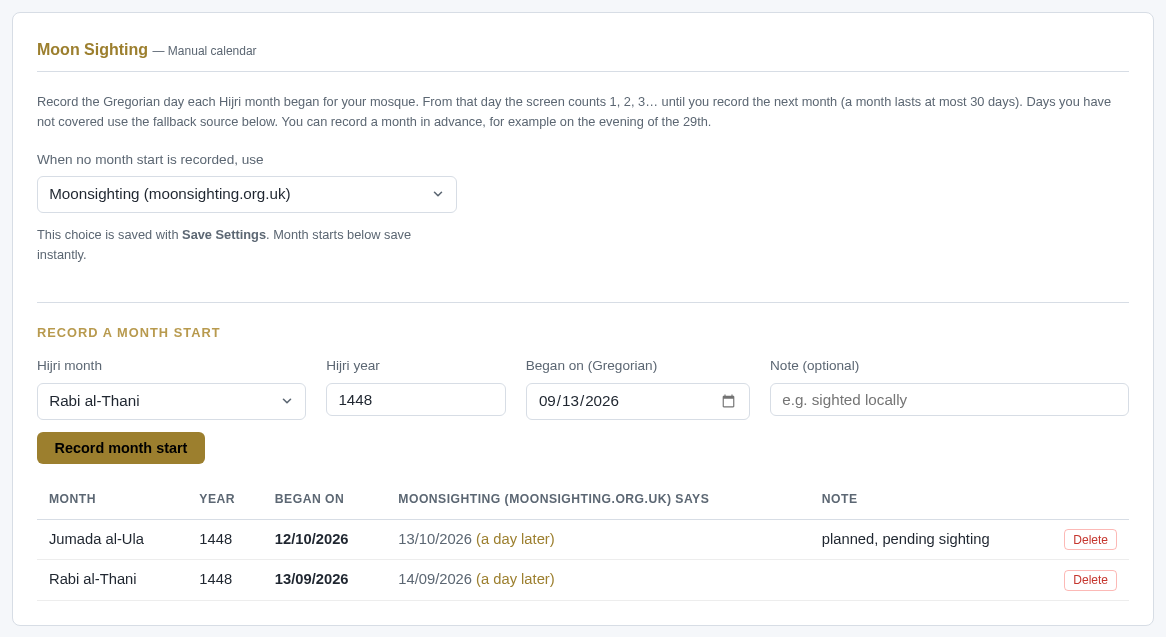
Choose Manual as the Calendar Type when your mosque follows its own moon-sighting decisions. The card appears straight away:
Pick the fallback source
When no month start is recorded, use — the automatic calendar used for any day you have not covered. Local Moonsighting (moonsighting.org.uk) is the default. This choice is saved with Save Settings.
Record a month start
Choose the Hijri month and Hijri year, set Began on to the Gregorian date that was day 1, add an optional Note (for example sighted locally), then click Record month start. Records save instantly — no Save Settings needed — and every screen, the offline bundles and the printed timetable update within a minute.
Check the table
Each row shows the month, the day it began, what the fallback source says for that month (same, a day earlier or a day later) and your note. Delete removes a record; those days go back to the fallback source.
How the date is worked out: from a recorded start the screen counts 1, 2, 3 … up to 30 until you record the next month. Days before your first record, or more than 30 days after your last one, use the fallback source. If you record a month starting later than the fallback source says, the day in between is shown as the last day of the previous month, never as day 1 of a month you have not yet sighted.
You can enter a month before it starts — on the evening of the 29th once the decision is announced, or a whole Ramadan plan in one go. Until a month is recorded it is treated as predicted; the printed timetable marks such dates with an asterisk (see Print Timetable). Recording the sighting replaces the prediction immediately.
Month must be 1–12, year 1400–1600 and the date real. A date already used for another month is refused. A start that is not 29 or 30 days after the previous recorded month is saved but flagged with a warning, so a typo in the year or date is easy to spot. Viewer accounts can see the card but not change it.
Column Labels
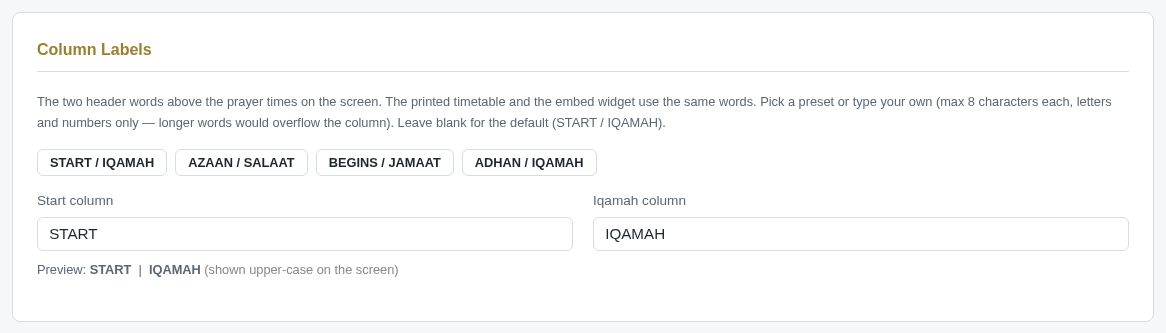
The two header words above the prayer times on the screen — START and IQAMAH by default. Click a preset chip (AZAAN / SALAAT, BEGINS / JAMAAT, ADHAN / IQAMAH) or type your own, up to 8 letters or numbers each so they never overflow the column. The printed timetable, the website widget and the signage split-screen designs (19 and 21) use the same words, so every surface matches. Leave both blank to return to the default. Saved with Save Settings.
Jumu'ah
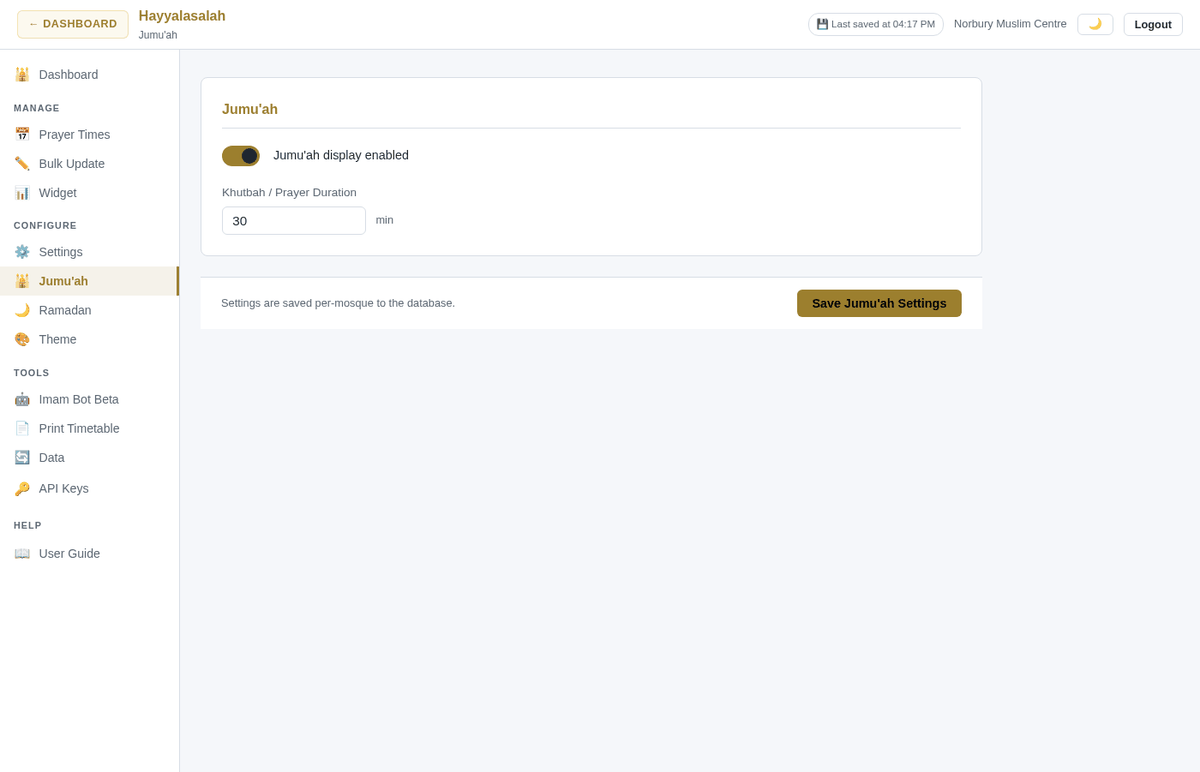
- Jumu'ah display enabled — turn the Friday treatment on or off.
- Khutbah / Prayer Duration — how long the "Time for Jumu'ah" screen stays up (default 30 minutes).
The Jumu'ah times themselves live in the Prayer Times table (columns Jumu'ah 1 and Jumu'ah 2). Click Save Jumu'ah Settings.
Ramadan
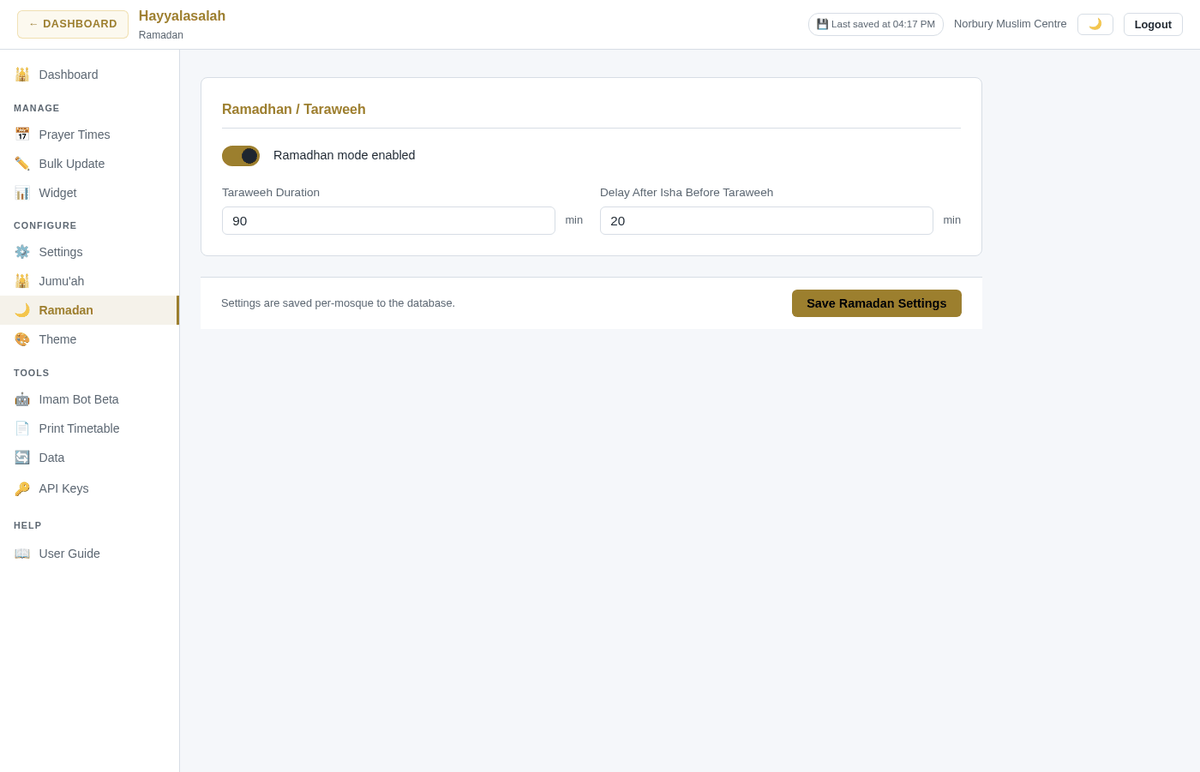
- Ramadhan mode enabled — switches the seasonal display on (Suhoor and Iftar timings are taken from your Fajr Begins and Maghrib Begins columns).
- Taraweeh Duration — how long the "Time for Taraweeh" screen is shown after Isha (default 90 minutes).
- Taraweeh begins minutes after Isha — minutes between Isha Jamaat and the Taraweeh screen (default 10).
Click Save Ramadan Settings. Ramadan dates themselves follow your Calendar Type; the Signage admin has a Ramadan Mode override if you need to force specific dates.
Theme
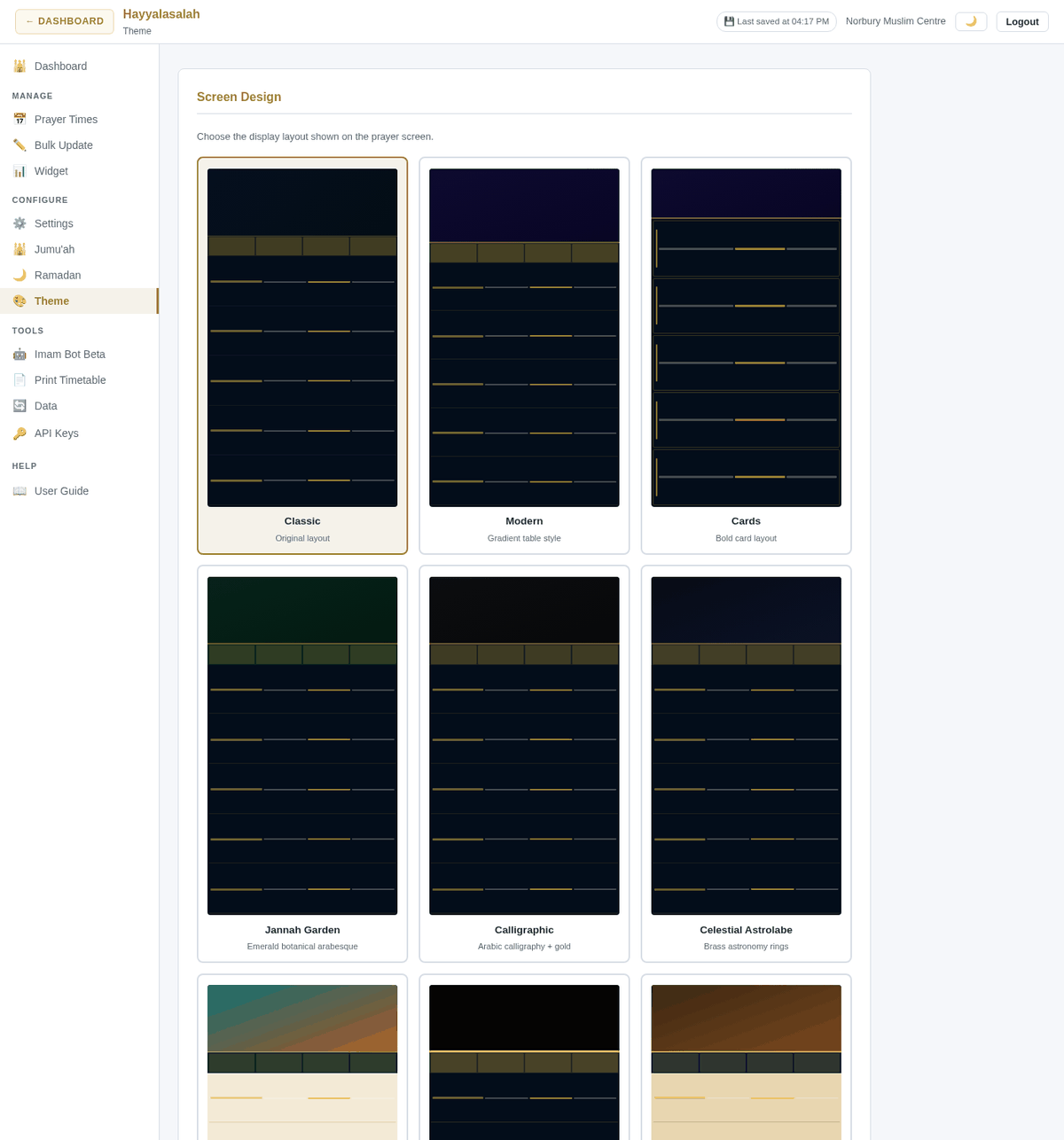
Pick the overall look of the kiosk from the Screen Design grid: Classic, Modern, Cards, Jannah Garden, Calligraphic, Celestial Astrolabe, Zellige Mosaic, Kaaba Kiswah, Andalusian Alhambra and Luminous Nur. Each design has its own palette and typography; some expose accent colours you can fine-tune below the grid. Click a thumbnail, check the preview, then Save Theme & design.
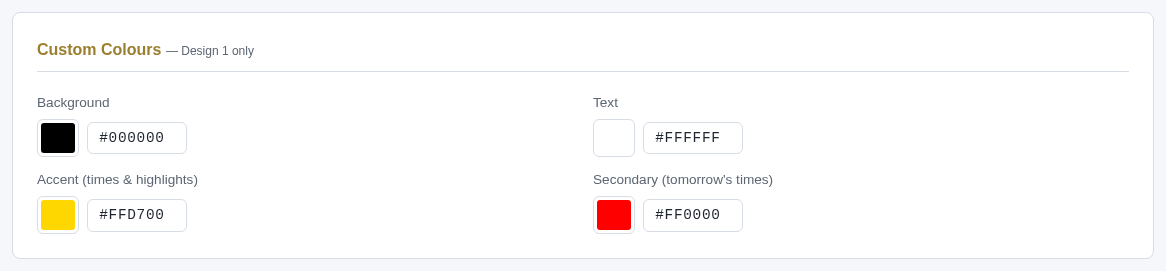
With the Classic design selected, the Custom Colours card lets you set the Background, Text, Accent (today's times and highlights) and Secondary colour, which is used for tomorrow's times once today's prayers have passed. Secondary is red by default so tomorrow's times are unmistakable. Type a hex value or click the swatch; the two stay in sync.
Imam Bot Beta
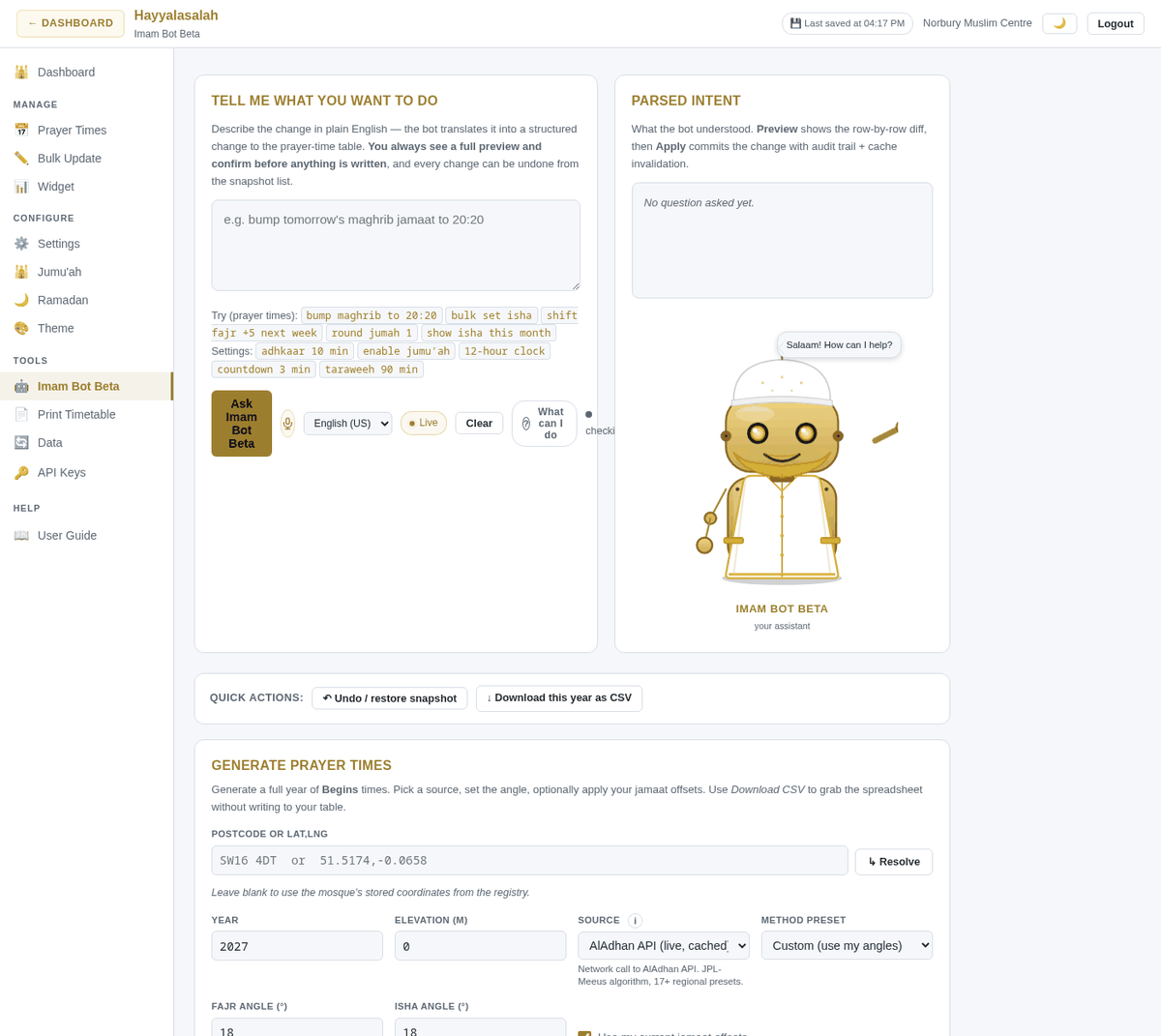
An assistant that turns plain-English requests into prayer-time or settings changes — always with a preview and an undo. Examples (click the chips under the box to try them):
- "bump maghrib to 20:20" · "bulk set isha" · "shift fajr +5 next week" · "round jumah 1" · "show isha this month"
- "adhkaar 10 min" · "enable jumu'ah" · "12-hour clock" · "countdown 3 min" · "taraweeh 90 min"
Type your request (or tap the microphone and say it)
Pick the language from the drop-down if you are not speaking English. Click Ask Imam Bot Beta.
Read the Parsed Intent
The right-hand panel shows exactly what the bot understood — which rows, which column, what change. If it misread you, rephrase and ask again.
Preview
A row-by-row diff appears: current value crossed out, new value highlighted. Nothing has been written yet.
Apply
Confirm to commit. A rollback snapshot is taken first and the change is written to the audit trail.
What can I do lists everything the bot understands. Chat with Imam Bot Beta at the bottom of the page answers questions about the system ("what is my screen url?", "how are my screens?", "post an announcement").
Quick actions
- ↶ Undo / restore snapshot — every Apply, bulk update, import and roll-over takes a snapshot. Click Restore next to any snapshot to go back to it; the restore itself takes a pre-undo snapshot, so even a rollback can be reversed.
- ↓ Download this year as CSV — a backup copy of the whole table, ready for Excel.
Generate prayer times
Creates a full year of Begins times from astronomical calculation. Pick the year, the source (AlAdhan or a London mosque template), the Fajr/Isha angle (12°, 15° or 18°), and whether to keep your existing Jamaat offsets. Preview shows the result; Download CSV gives you the spreadsheet without touching your table; Apply writes it (with a snapshot).
Parse a file (PDF / CSV / Excel / photo)
Drop an existing timetable on the drop zone. The system extracts the text (OCR if it is a scanned image), maps the columns to our layout, checks the year and prayer ordering, and shows a preview. You confirm the mapping before anything is written.
Print Timetable
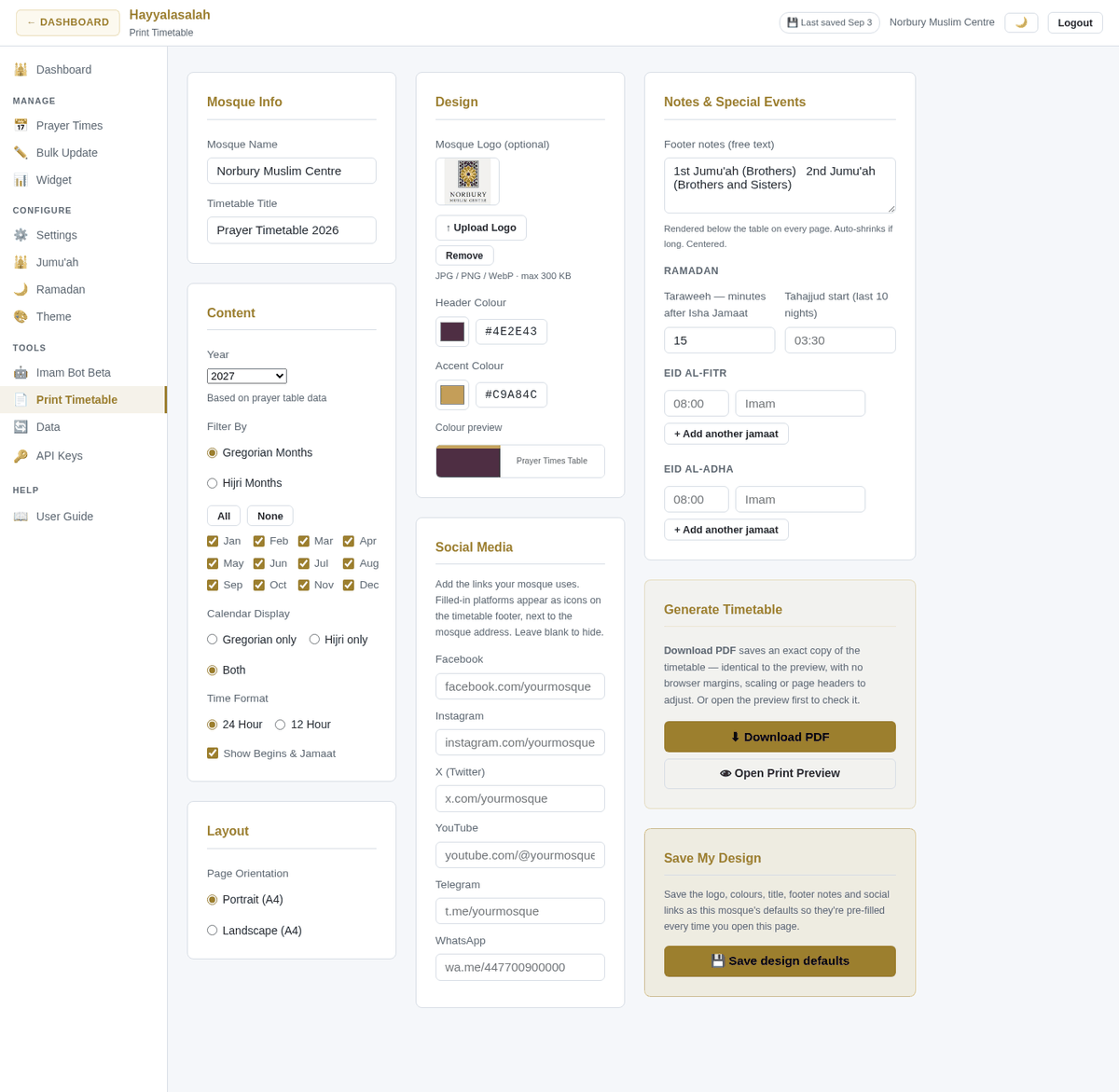
Produces a printable A4 PDF of your timetable for noticeboards and handouts:
- Mosque Info — mosque name and the title printed at the top (e.g. Prayer Timetable 2026).
- Content — year, which months to include (Gregorian or Hijri months), calendar display (Gregorian only / Hijri only / both), 24- or 12-hour, and whether to show Begins and Jamaat.
- Layout — Portrait or Landscape A4.
- Design — optional logo (JPG/PNG/WebP, max 300 KB), header and accent colours with a live colour preview.
- Social Media — Facebook, Instagram, X, YouTube, Telegram, WhatsApp… filled-in platforms appear as icons in the footer.
- Notes & Special Events — Jumu'ah timings, Eid prayers and any free-text notes for the footer.
Download PDF builds the file. The gold Save My Design box beneath it remembers your logo, colours, notes and links for next time. The column header words come from Column Labels.
Hijri dates on the printout
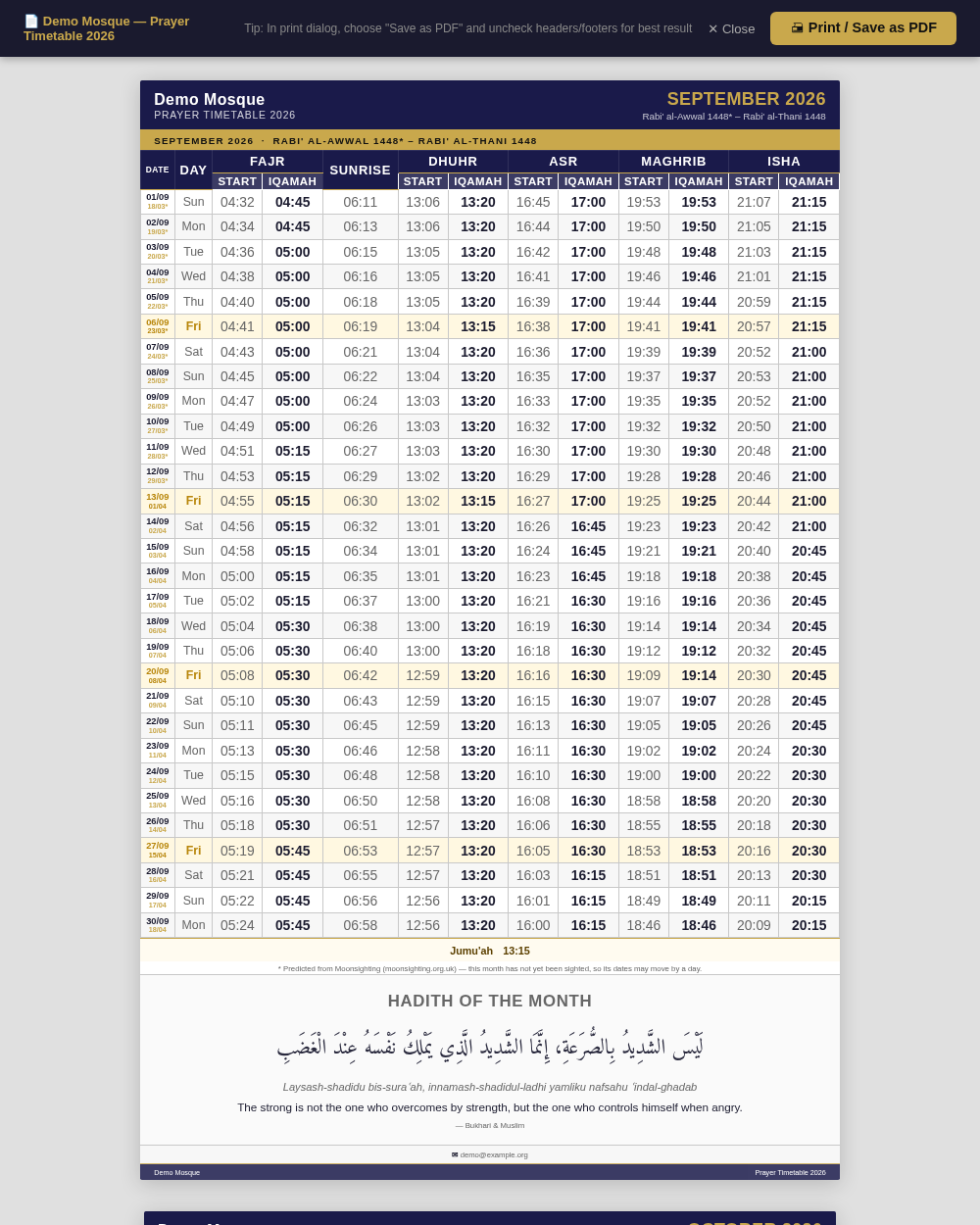
The Hijri column follows your Calendar Type. On the Manual calendar the printout uses your recorded month starts; any day not covered by a record is taken from your fallback source and marked with an asterisk, the month name in the page subtitle is starred too, and a footnote reads "* Predicted from … — this month has not yet been sighted, so its dates may move by a day." Record the sighting and reprint: the asterisks disappear.
Data
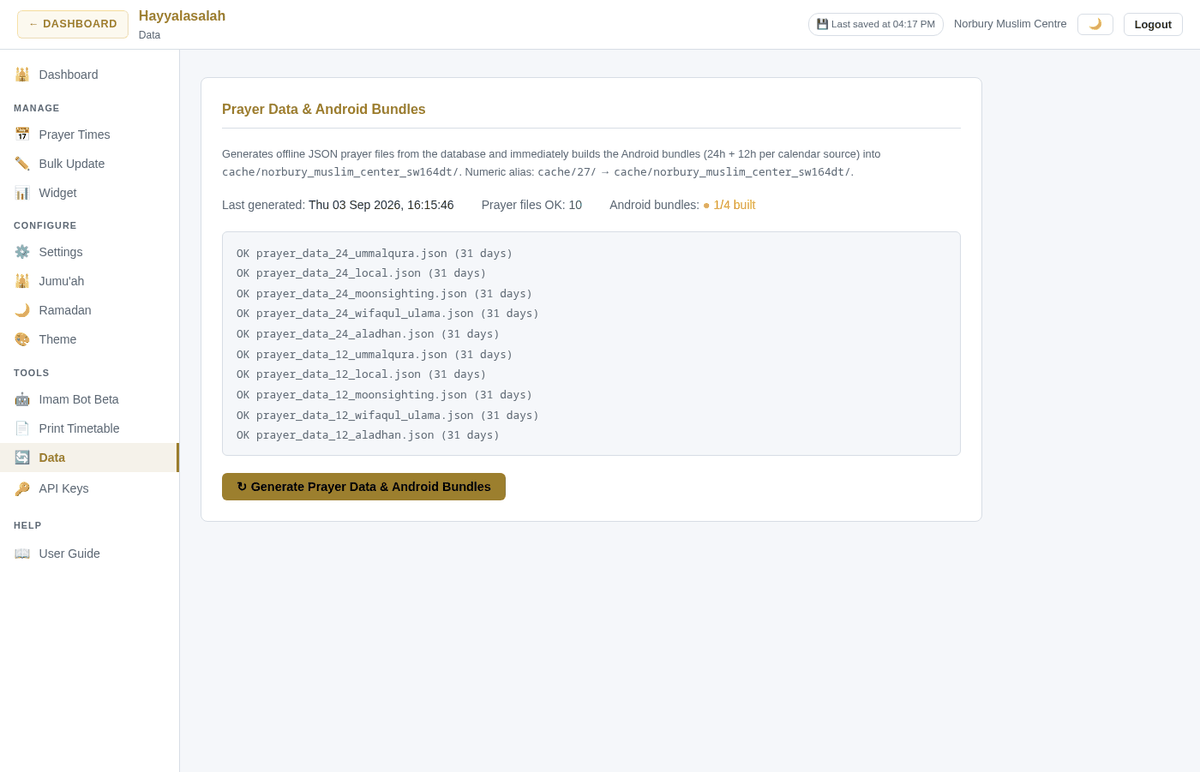
Screens and the Android app read pre-built prayer files rather than the live database, so they keep working offline. These are rebuilt automatically whenever you save, but if a screen seems to show stale times you can force it here: click Generate Prayer Data & Android Bundles, wait a few seconds, and check that every line in the log says OK.
API Keys
Create read-only or read-write keys for your website or scripts to download and upload prayer times. Covered in full in Guide 05 — Prayer Times API.