Using the Display
Everything you need to operate the screen on the wall — for both the Salah Screen (prayer-time clock) and Signage (hall display). This guide covers the on-screen menu (the "right-click menu"), switching between the two displays, connecting WiFi, and the everyday buttons you'll actually use. Written for mosque volunteers — no technical background needed.
This guide covers Raspberry Pi and Linux screens. If your screen runs the Android TV app, its setup and remote-driven menu are in Guide 08 — Android TV App.
Watch: setting up a screen in two minutes
Everything from plugging the box in to the display appearing on the wall, step by step. Sound is not needed — each step is captioned.
Two displays, one app
Every Hayyalasalah device runs one of two displays. They come from the same app, so the controls are the same on both — only what's shown on screen differs.
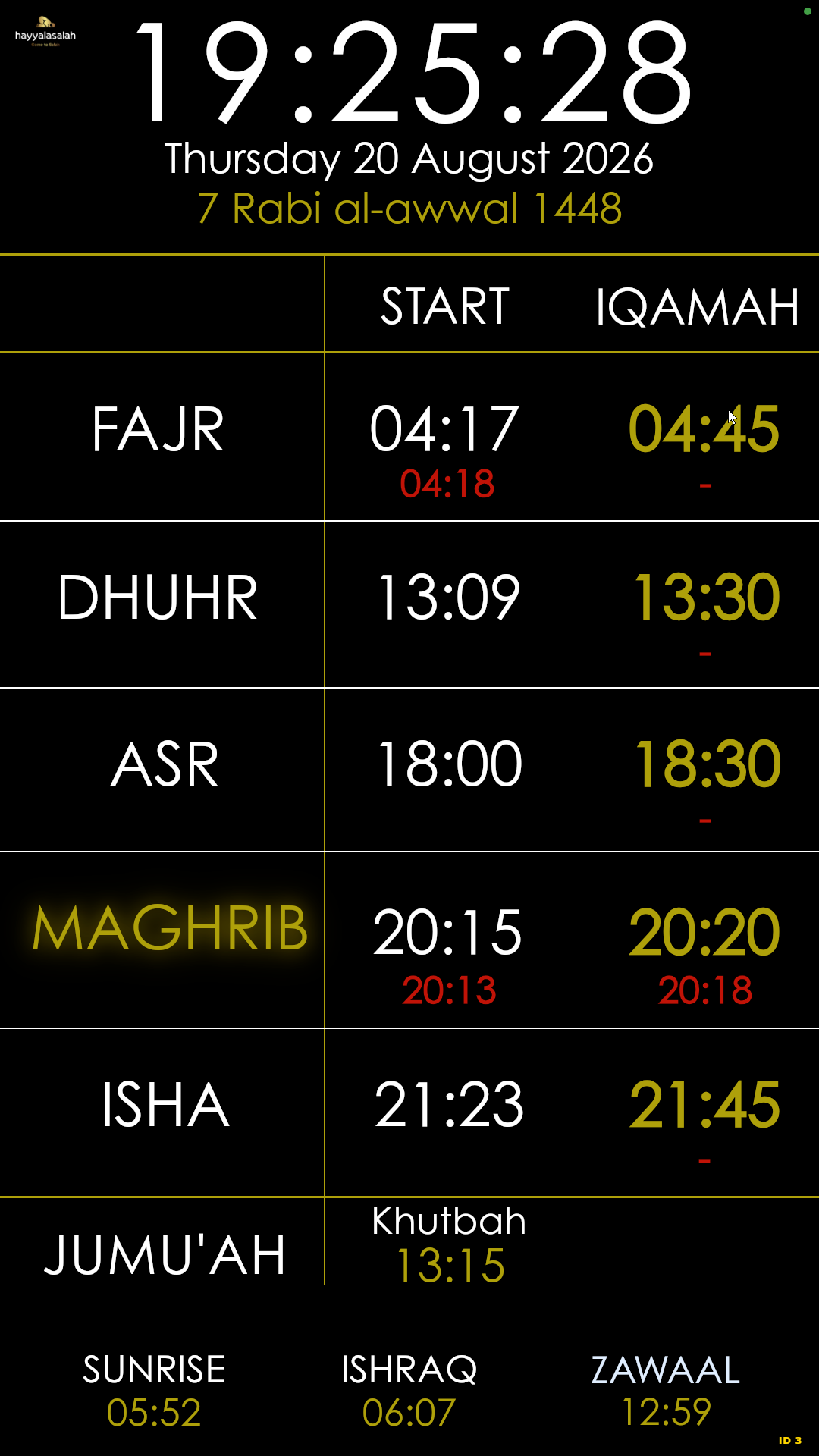
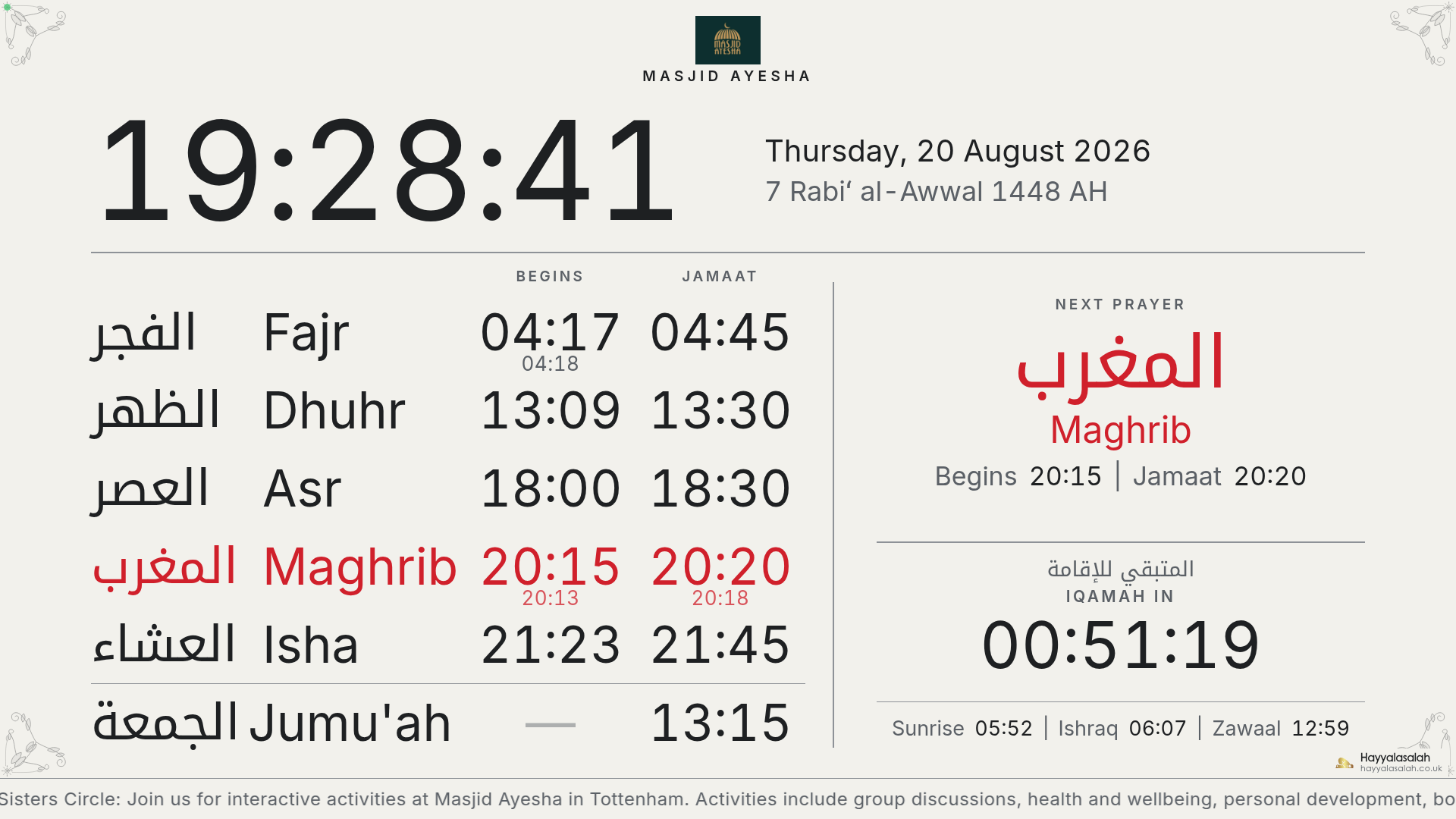
A small dot sits in the top corner of the display. Green means the screen is online and syncing; red means it's offline. A red dot is not an emergency — the screen keeps showing the times it already has. See Working offline below. The small ID number in the bottom corner is this device's number — handy to quote when you email support.
Turning it on — what happens
When you power the device on, it gets itself onto the display with no input from you:
It starts up and sets itself right
The screen is turned the correct way round (portrait or landscape, however it was set up) and the device tunes itself for smooth, steady running.
A brief loading screen appears
You'll see a short "getting ready" screen while it starts — this is normal, and you don't need to do anything.
It decides online or offline
It checks for internet. If it's online, it loads the newest display from the cloud; if it's offline, it loads the copy saved on the device, so the prayer times still appear.
The display opens full-screen
Just the prayer times or Signage fill the screen — no desktop, no buttons, no mouse pointer for the congregation to see.
On most devices this takes under a minute. After that, the screen looks after itself.
Working quietly in the background
Once the display is up, several small helpers keep it running without anyone touching it. You never see these — they're the reason a screen can be mounted, switched on, and left alone:
- A watchful eye on the display — constantly checks the picture is still being drawn. If it ever freezes or crashes, it restarts the display on its own, usually within a minute or two.
- A network minder — notices when the internet drops and when it comes back, and refreshes the screen on reconnection so it always shows the latest times and announcements.
- A background sync — quietly pulls fresh prayer times and content from your account through the day, so a change you make online appears on the wall without anyone going to the screen. Each night it also collects the refreshed offline package — only the files that changed, normally well under a megabyte.
- An offline safety net — keeps a full copy of everything on the device (prayer times, content, every weekday and seasonal image) and serves it locally, so a broadband outage never blanks the display. Offline, it still switches to the right day's images by itself.
- A memory guardian — on smaller devices, keeps memory healthy and steps in before it runs low, preventing slowdowns and crashes.
- A nightly self-restart — the device reboots itself on a quiet schedule (in the early hours) to stay fresh. You may notice a brief blank at that time — it comes straight back.
- A secure support line — a private, outbound-only connection that lets our team help remotely if you ask us to. It only permits the help you've requested; nothing on the device is exposed to the public.
- Automatic alerts — if a screen ever goes down and can't recover by itself, our team is notified so we can look into it.
Because of all this, the screen is designed to be left running. Mount it, switch it on, and it should keep itself going — recovering from freezes, outages and reboots on its own. The menu below is only there for the occasional change.
Opening the on-screen menu
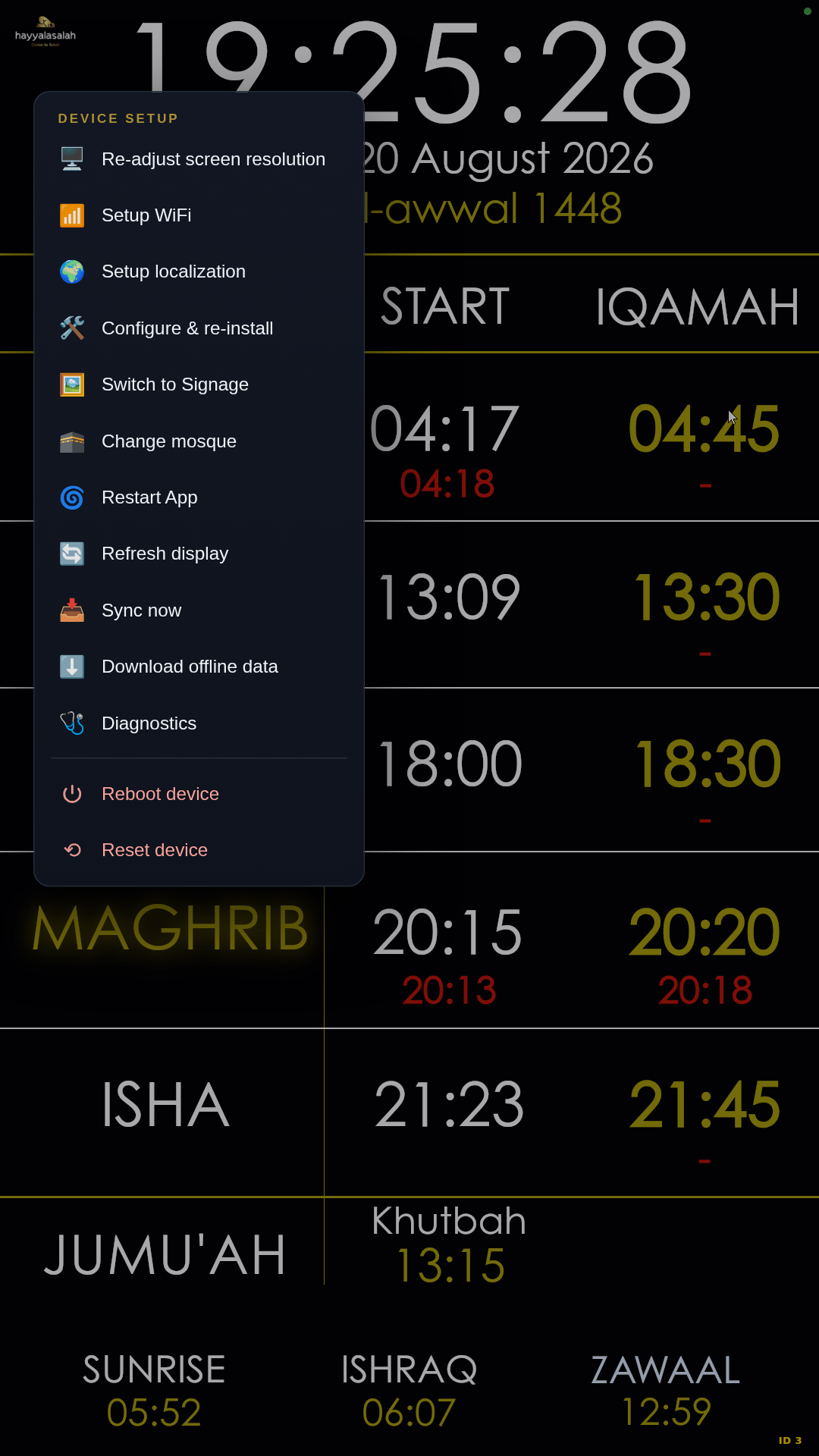
Every setting on the device lives in one on-screen menu. There is no visible button on the live display (so the congregation never sees it) — you open it with a gesture. There are three ways, and they all open the same menu:
| If the screen has… | Do this |
|---|---|
| A mouse | Right-click anywhere on the screen. |
| A touchscreen | Press and hold one finger anywhere for about a second. |
| Anything (always works) | Tap the top-left corner three times quickly — three taps within about a second, right in the corner. |
The three quick taps in the very top-left corner is the one method that works on every screen — mouse or touch, Salah Screen or Signage. If a right-click does nothing (some Signage screens don't have a right-click), use the corner taps instead. To close the menu again, tap anywhere outside it or press Esc.
What each option does
The menu is titled Device setup. Here's every option, top to bottom.
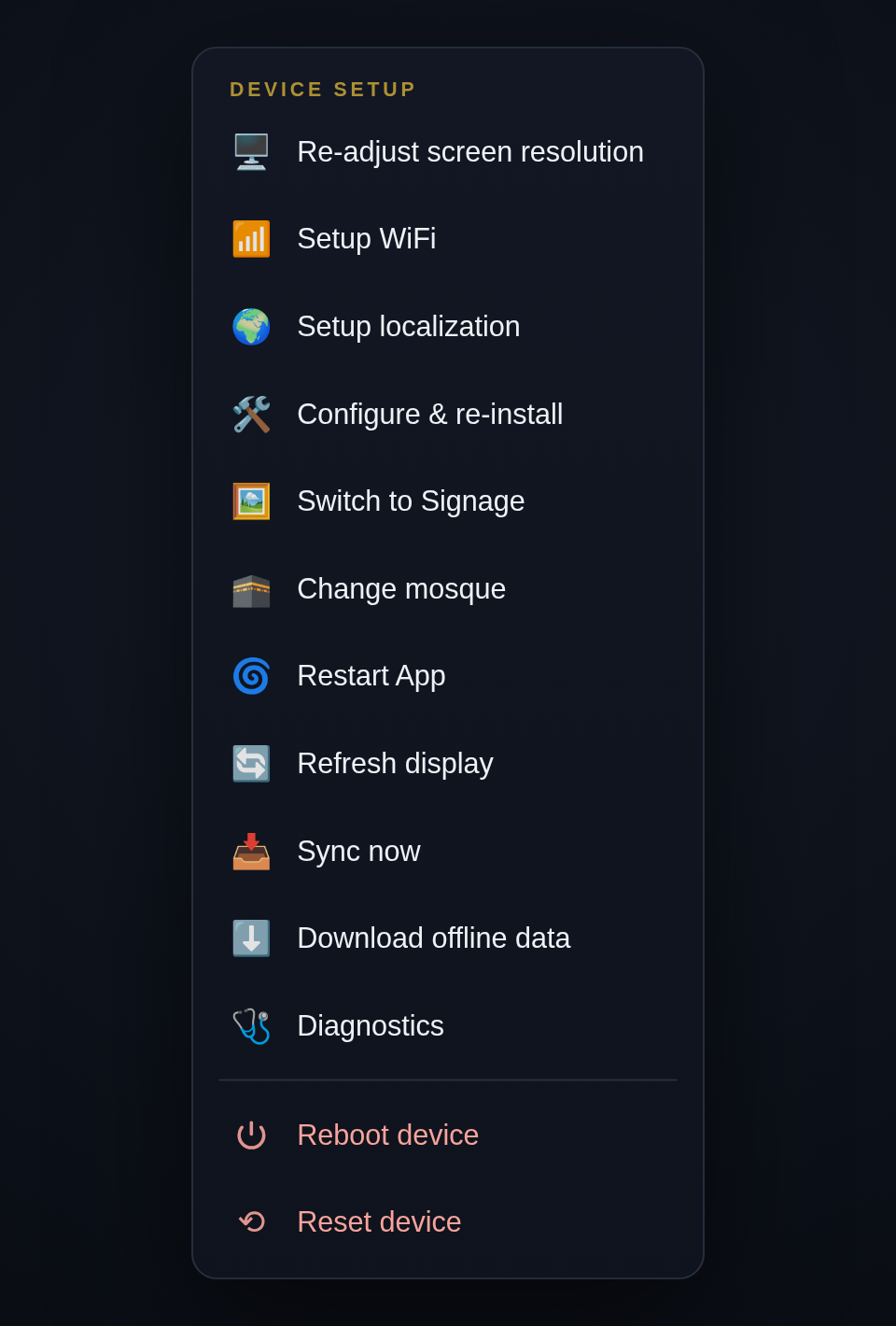
Setup
| Option | What it does |
|---|---|
| 🖥️ Re-adjust screen resolution | Fix the picture if it's the wrong size or rotated — choose orientation (landscape / portrait) and resolution. See Fixing the picture. |
| 📶 Setup WiFi | Connect the screen to a WiFi network. See Connecting to WiFi. |
| 🌍 Setup localization | Set the device's time zone so the clock is correct for your city. |
| 🛠️ Configure & re-install | Rebuilds the device's setup, then reboots. Only needed if support asks you to — the screen goes blank for a few minutes. |
Everyday controls
| Option | What it does |
|---|---|
| 🖼️ Switch to Signage / Salah Screen | Flips this screen between the prayer-time display and the hall Signage. The label shows whichever one you're not on. See Switching displays. |
| 🕋 Change mosque | Points this screen at a different mosque. Takes you to setup to enter the new Mosque ID (MSQ-…). |
| 🌀 Restart App | Restarts just the display. The screen goes blank for a few seconds, then comes back. The first thing to try if the screen looks stuck. |
| 🔄 Refresh display | Reloads the page — like refreshing a web page. Lighter than a restart. |
| 📥 Sync now | Pulls the latest prayer times and settings from your account immediately, instead of waiting for the next automatic sync. |
| ⬇️ Download offline data | Saves everything the screen needs to keep running with no internet. See Working offline. |
| 🩺 Diagnostics | A read-only status page — useful when you contact support. See Checking the status. |
Careful with these
| Option | What it does |
|---|---|
| ⏻ Reboot device | Restarts the whole device (not just the app). The screen goes blank for about 30 seconds, then comes back on its own. Safe to use — nothing is lost. |
| ⟲ Reset device | Wipes the Mosque ID and chosen display and returns to the first-time setup screen. This cannot be undone. Only use it when moving the device to a different mosque, or if support asks. |
Anything that interrupts the screen — restart, switch, reboot, reset — first asks you to confirm, with a plain description of what will happen. Nothing happens from a single accidental tap.
Hiding the mouse pointer
When a mouse is plugged in, the display shows the mouse pointer — and it stays wherever you last left it. It won't fade away on its own, and simply unplugging the mouse leaves the arrow sitting on screen. The trick is to park it off the edge of the screen before you unplug:
Plug a mouse in
Use it for whatever you need — opening the menu, changing a setting.
Move the pointer off the screen
When you're done, slide the pointer into a corner and keep going, right off the edge of the display, so the arrow is parked out of the visible area.
Unplug the mouse
The pointer stays parked off-screen, so nothing shows on the wall.
Leave the "park it off-screen, then unplug" step until you've finished everything else with the mouse. If you plug a mouse back in later, just repeat the three steps when you're done — move the pointer off the edge before unplugging.
Switching between Salah Screen and Signage
The same physical screen can show either display. To switch:
Open the menu
Three taps in the top-left corner (or right-click).
Choose "Switch to Signage" or "Switch to Salah Screen"
The option names whichever display you're not currently on.
Confirm
The screen goes blank for a few seconds, then comes back on the other display, already set to your mosque.
Signage is heavier than the Salah Screen. On smaller devices the Switch to Signage option is greyed out and reads "Signage — needs a Pi 4." Those devices run the Salah Screen only. If you need Signage on that screen, contact support about the hardware.
Connecting to WiFi
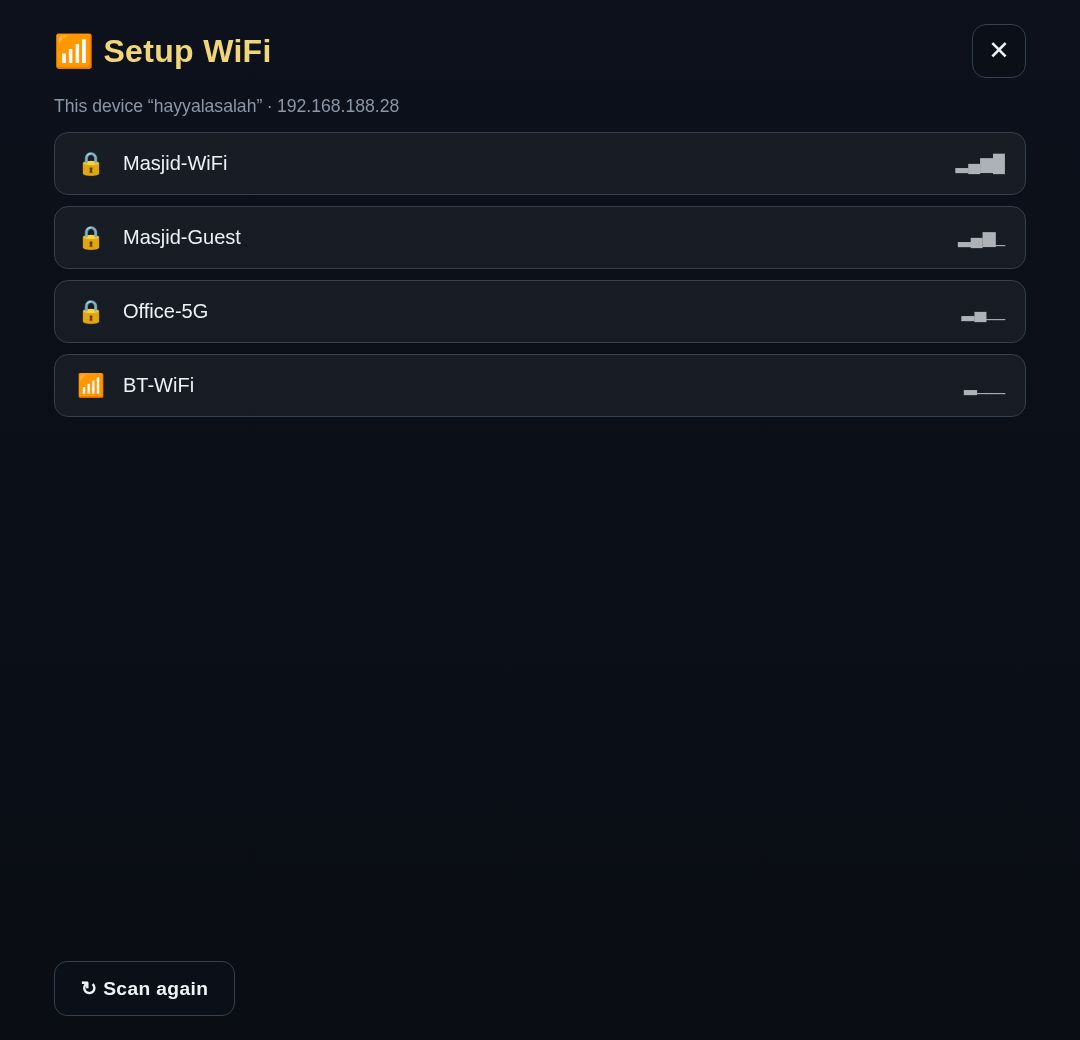
Open the menu → Setup WiFi
The screen scans and lists nearby networks, strongest first.
Tap your network
If it shows a 🔒 lock, a password box appears. Tap Show password if you want to check what you typed.
Tap Connect
You'll see "✓ Connected!" when it works. If it fails, double-check the password and try again — use ↻ Scan again if your network isn't listed.
If the screen is near your router, an Ethernet cable is the most reliable option — plug it in and you can skip WiFi entirely.
Fixing the picture (orientation & resolution)
Use this if the display is sideways, stretched, or doesn't fill the screen.
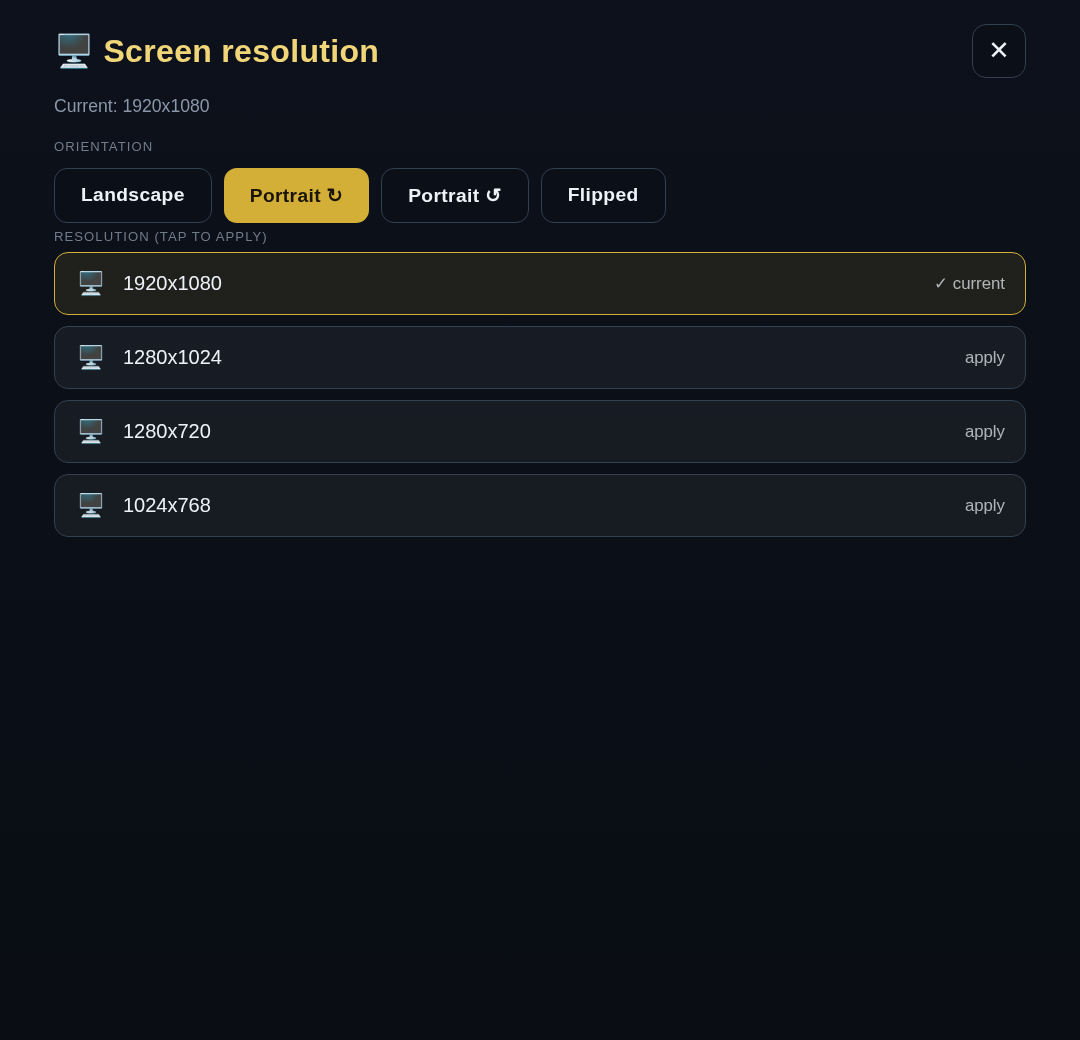
Open the menu → Re-adjust screen resolution
Pick the orientation
Landscape for a normal wide TV; Portrait for a screen mounted tall (the two portrait options rotate opposite ways — pick whichever turns the picture upright).
Tap a resolution
The current one is marked ✓ current. If unsure, the topmost option is usually right. The picture changes immediately so you can see the result.
Working offline
The screen is built to keep running when the internet drops — the prayer times stay on the wall even with a red dot. To make sure it has a full stock of data saved locally:
Open the menu → Download offline data
On a Salah Screen this saves the whole year of prayer times; on Signage it saves the full content package.
Wait for the confirmation
You'll see how many days were saved. After that the screen can run with no internet at all until that date.
Running Download offline data once when you first install a screen means a broadband outage will never blank your prayer times. Sync now tops it up any time you've changed times in your admin account and want them on the wall straight away. After that first download the device keeps the copy fresh on its own: the package is rebuilt every night and the device fetches only what changed.
Checking the status
Before you email support, open Diagnostics — it shows the device's current state on one screen. Nothing here can be changed; it's just information.
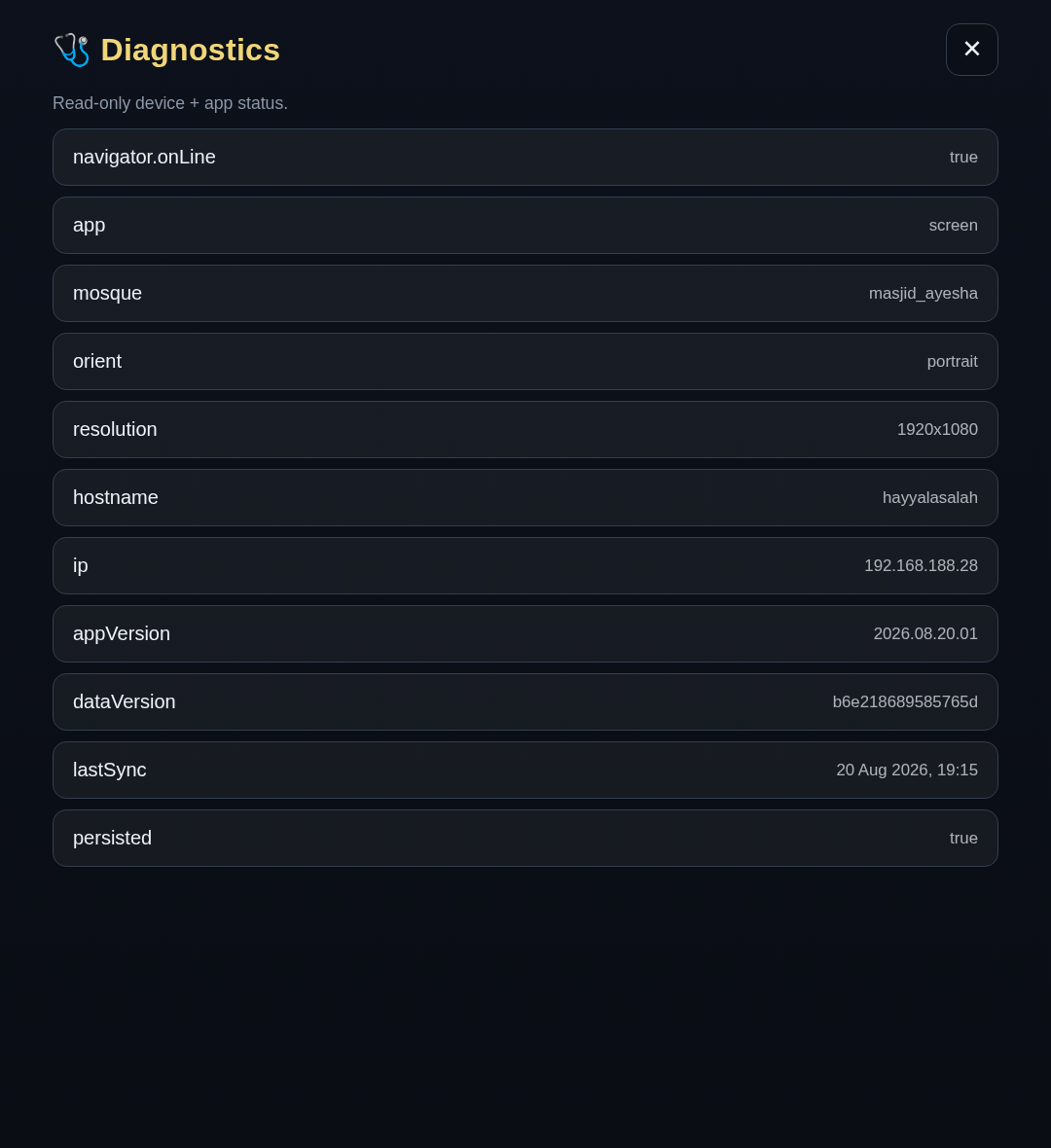
app, mosque, appVersion and whether it's online.| Line | Meaning |
|---|---|
navigator.onLine | Whether the screen currently has internet. |
app / mosque | Which display it's running and which mosque it's set to. |
orient / resolution | Current picture orientation and size. |
ip / hostname | The device's address on your network. |
appVersion | The app version installed — support may ask for this. |
lastSync | When it last pulled fresh data from your account. |
If something looks wrong
Work down this list — each step is a little stronger than the one before, and the first one fixes most things.
Restart App
Menu → Restart App. Fixes a frozen or stuck-looking display in a few seconds.
Reboot device
Menu → Reboot device. If a restart wasn't enough, this restarts the whole device (~30 seconds).
Check WiFi
If the dot is red and shouldn't be, open Setup WiFi and reconnect.
Contact support
Still stuck? Open Diagnostics, note the
IDnumber from the corner of the screen, and email us (below).
Reset device erases which mosque and display this screen is set to and sends it back to first-time setup. It's only for moving a device to a new mosque. It cannot be undone — a plain reboot or restart is what you want for day-to-day problems.
Common questions
Right-click does nothing on my Signage screen — is it broken?
No. Some Signage screens don't send a right-click. Use the three quick taps in the top-left corner instead — that always opens the menu.
The menu says "Device agent unreachable."
That message appears when you're viewing the page on a laptop or phone rather than on the screen device itself. The menu's device controls only work when opened on the actual screen.
Will the congregation ever see this menu?
No. There's no visible button on the live display — the menu only appears when you make the deliberate gesture (right-click, long-press, or corner taps), and it closes as soon as you tap away.
I changed my prayer times online but the screen still shows the old ones.
The screen syncs on its own within a short while. To pull the change immediately, open the menu and tap Sync now.
The dot is red. What do I do?
First, nothing urgent — the prayer times stay on the wall. When convenient, open Setup WiFi and reconnect, or check the router. If you'd run Download offline data earlier, the screen will happily keep going offline for a long time.
Email nmctech1116@gmail.com with your Mosque ID (MSQ-XXXX) and the screen's ID number — usually a same-day reply.