Signing in
How to sign in, where you land afterwards, how to switch on two-factor authentication, and how to recover access when something goes wrong.
Where to sign in
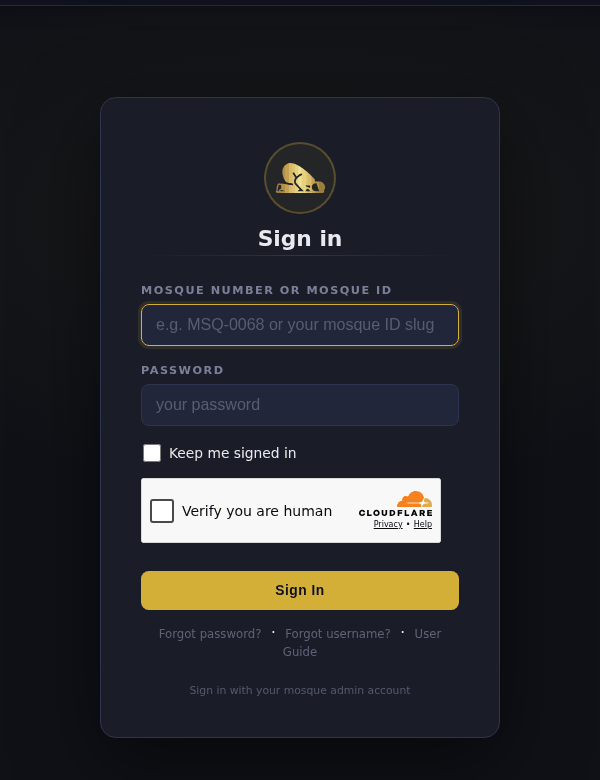
There is one sign-in page for everyone — mosque admins and sub-users alike:
hayyalasalah.co.uk/hayyalasalah/sign_in.php
You can also click Sign in in the top-right corner of any page on the site.
Signing in, step by step
-
Enter your Mosque ID
Type it in the first box:
- Your Mosque ID looks like
MSQ-0072and is in your welcome email. The number alone (72) also works. - Helpers (sub-users) type the username the mosque admin gave them.
- Your Mosque ID looks like
-
Enter your password
The one you saved at the end of registration (or the one set for you by your admin).
-
Choose whether to stay signed in
Leave Keep me signed in unticked on a shared computer — your session then ends when the browser closes. Tick it on your own phone or laptop to stay signed in for 14 days.
-
Pass the human check and click Sign In
Tick the Cloudflare "Verify you are human" box if it appears (it usually completes on its own), then click Sign In.
Five failed attempts = 15-minute waitAfter 5 wrong passwords within 15 minutes you will see "Too many attempts" and must wait 15 minutes. After 20 failures in a day the account itself is locked for 24 hours — use the forgot-password flow rather than guessing.
-
Enter your second-factor code (only if you have switched it on)
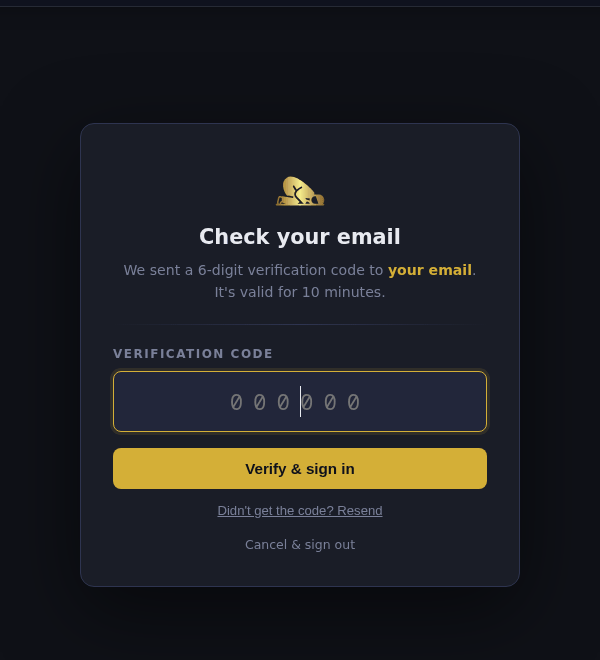
If you have enabled email codes, you are taken to a Check your email page: type the 6-digit code from the email (valid for 10 minutes) and click Verify & sign in. If you use an authenticator app instead, type the code the app shows.
-
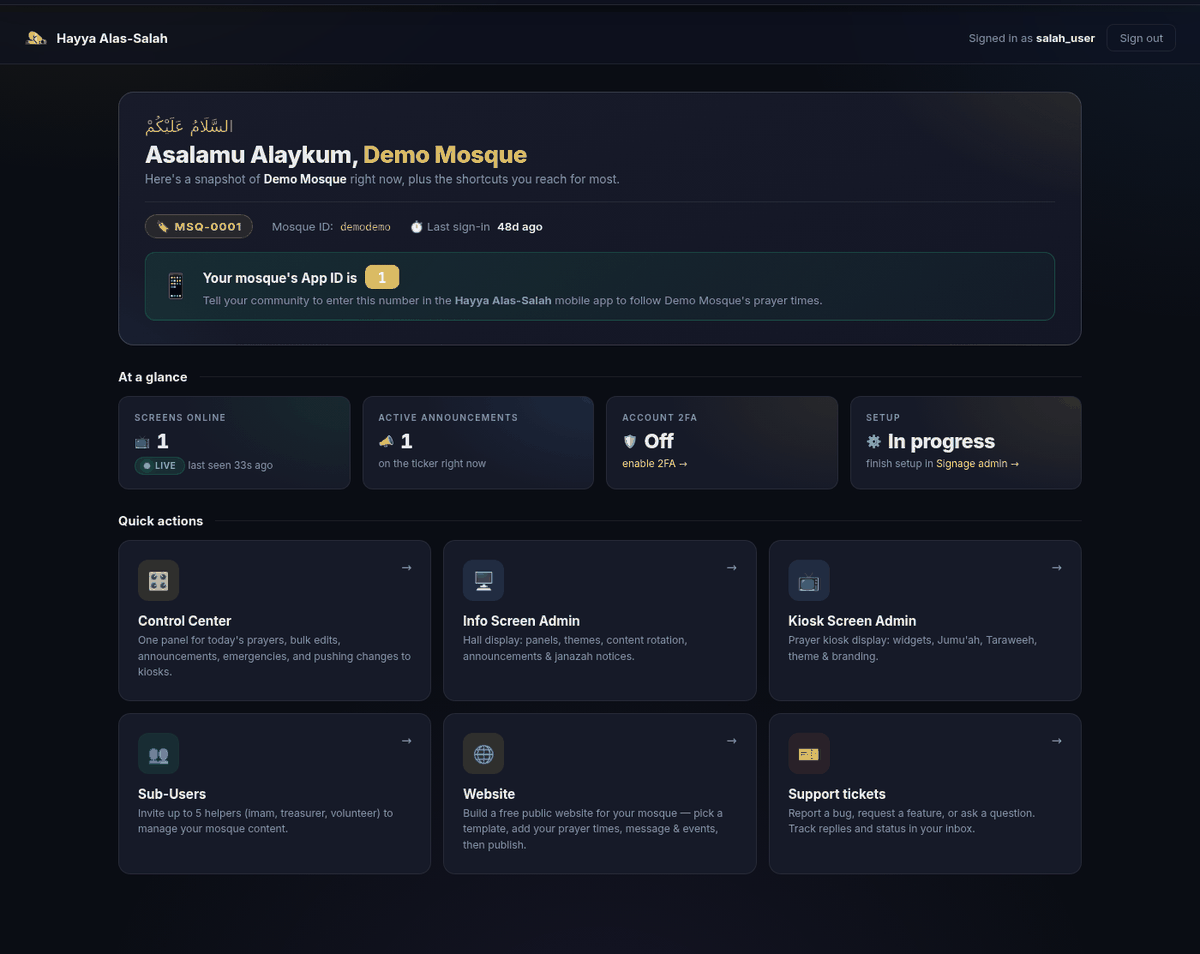
You're in — the Dashboard
The Dashboard shows your Mosque ID, last sign-in and your mosque's App ID (the number your community enters in the Hayya Alas-Salah mobile app), then an At a glance row — screens online, active announcements, 2FA status, setup status — and Quick actions:
- Control Center — one page for today's prayers, bulk edits, announcements, emergencies and pushing changes to screens.
- Signage Display — the hall display: panels, themes, content rotation, announcements and Janazah notices (Guide 04).
- Salah Screen — the prayer-clock display: timetable, widgets, Jumu'ah, Taraweeh, theme (Guide 03).
- Sub-Users — invite up to 5 helpers with their own logins.
- Website — build a free public website for your mosque.
- Support tickets — report a bug, request a feature or ask a question.
Two-factor authentication (2FA)
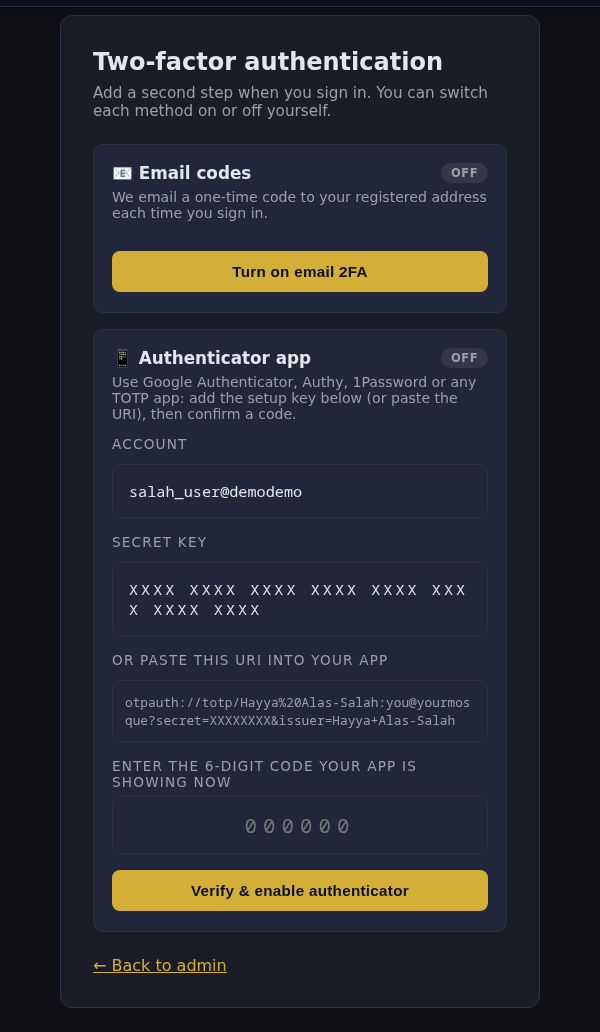
Two-factor authentication is optional and off by default. We strongly recommend switching it on — it means a stolen password alone is not enough to get into your account. Open it from the 🔒 2FA link in the top bar (or the "enable 2FA" link on the Dashboard). Both methods can be on at the same time.
Email codes
Click Turn on email 2FA. From then on, every sign-in emails a 6-digit code to your registered address; enter it on the Check your email page within 10 minutes. There is a Resend link if the code does not arrive.
Authenticator app
Works offline with Google Authenticator, Microsoft Authenticator, Authy, 1Password or any TOTP app:
- On the 2FA page, add the Secret key to your app (type it in, or paste the
otpauth://URI). - Type the 6-digit code the app is showing into Enter the 6-digit code your app is showing now.
- Click Verify & enable authenticator. The app's code is now accepted at sign-in.
Enable the authenticator app even if you also use email codes — you can still sign in when your email is slow or unreachable. Keep a second device or your app's backup enabled so you are not locked out if you lose your phone.
Forgot your password
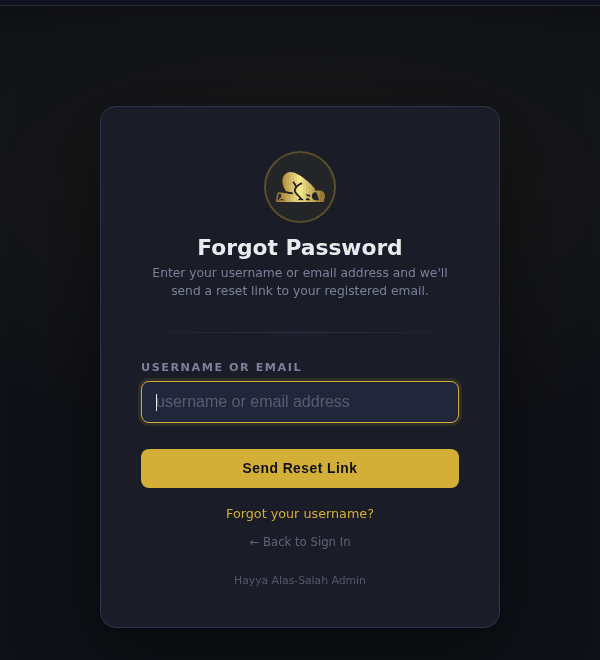
-
Open the forgot-password page
Click Forgot password? under the sign-in button, or go to hayyalasalah.co.uk/hayyalasalah/forgot_password.php.
-
Enter your username or email
Click Send Reset Link. For security the page shows the same "if this account exists, a link has been sent" message whether or not the address is registered.
-
Click the link in the email
The link is valid for 1 hour. It opens a page where you choose a new password (12+ characters, three of: lowercase, uppercase, digits, symbols).
-
Sign in with the new password
Back at the normal sign-in page; your 2FA settings are unchanged.
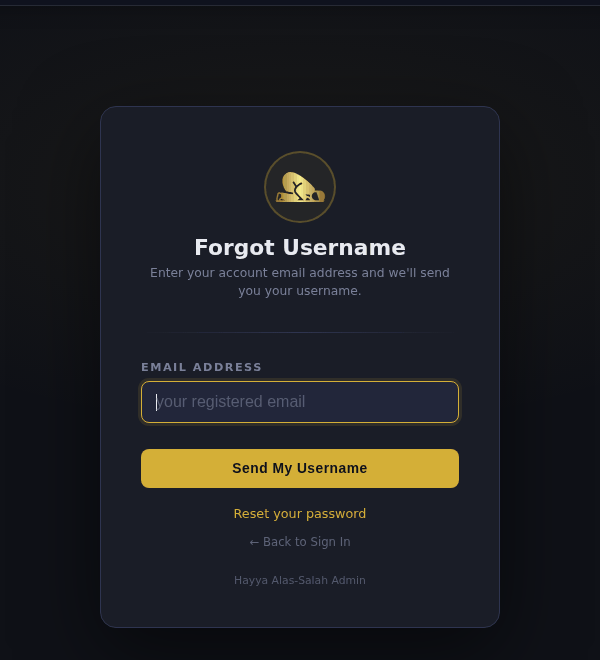
Forgot your Mosque ID
Click Forgot Mosque ID? on the sign-in page (or visit forgot_username.php), enter the email you registered with, and click Send My Mosque ID. The email contains your Mosque ID (MSQ-…) — one per mosque if the address manages several.
Signing out
Click Sign out in the top-right corner of the site bar (or Logout in the Kiosk admin header). This ends the session immediately. Your screens keep running — they never depend on you being signed in.
Common sign-in issues
"Invalid username or password" but I'm certain the password is right
Most often the first box is the problem. Type your Mosque ID exactly as MSQ-0072. Check Caps Lock and stray spaces. If you set the password recently, make sure you are not autofilling the old one.
"Too many attempts" message
Five failures within 15 minutes locks sign-in for 15 minutes for that account and for your network address. Wait it out or use forgot-password. If you are sure the password is right and you are still locked, email support — the lock can be cleared.
The 2FA code email isn't arriving
Check spam. Use the Resend link — each resend issues a fresh code. If your email host keeps blocking these, sign in once when it does arrive and pair an authenticator app, which needs no email at all.
I lost my authenticator phone
If email codes are also on, sign in with an email code and re-pair a new phone from the 2FA page. If the authenticator was your only method, email support from your registered address with your Mosque ID; the platform team can reset 2FA on the account.
I'm signed in but get bounced back to the sign-in page
Usually a cookie problem. Clear cookies for hayyalasalah.co.uk and sign in again. Safari users may need to allow cookies for the site under Privacy settings.
How long do I stay signed in?
Without Keep me signed in, the session lasts until you close the browser. With it ticked, 14 days. Browsers such as Chrome and Safari can also remember the password for you.