Registration
How to create your free Hayyalasalah account. The registration form is a five-step wizard — Mosque, Timetable, Contact, Account, Review — followed by an email check. Allow about 10 minutes, a little longer if you upload a timetable.
Before you begin
Have these ready:
- An active email address for the contact person — the verification link and your welcome email go here. Use an inbox someone checks daily (not
noreply@…). - Your mosque's full name, street address, postal code, phone number and website.
- Optional: your current prayer timetable as an Excel or CSV file. Any layout works — the platform works out the columns for you. You can skip this and import later.
- A safe place to keep a password — a password manager (Bitwarden, 1Password, Apple Keychain) is best.
Hayyalasalah is free for all mosques worldwide. No credit card, no trial, no upgrades.
Step-by-step
Open hayyalasalah.co.uk/hayyalasalah/register.php in any browser (phone, tablet or computer). The progress bar at the top shows which of the five steps you are on; Back takes you to the previous step without losing what you typed.
-
Step 1 — Mosque details
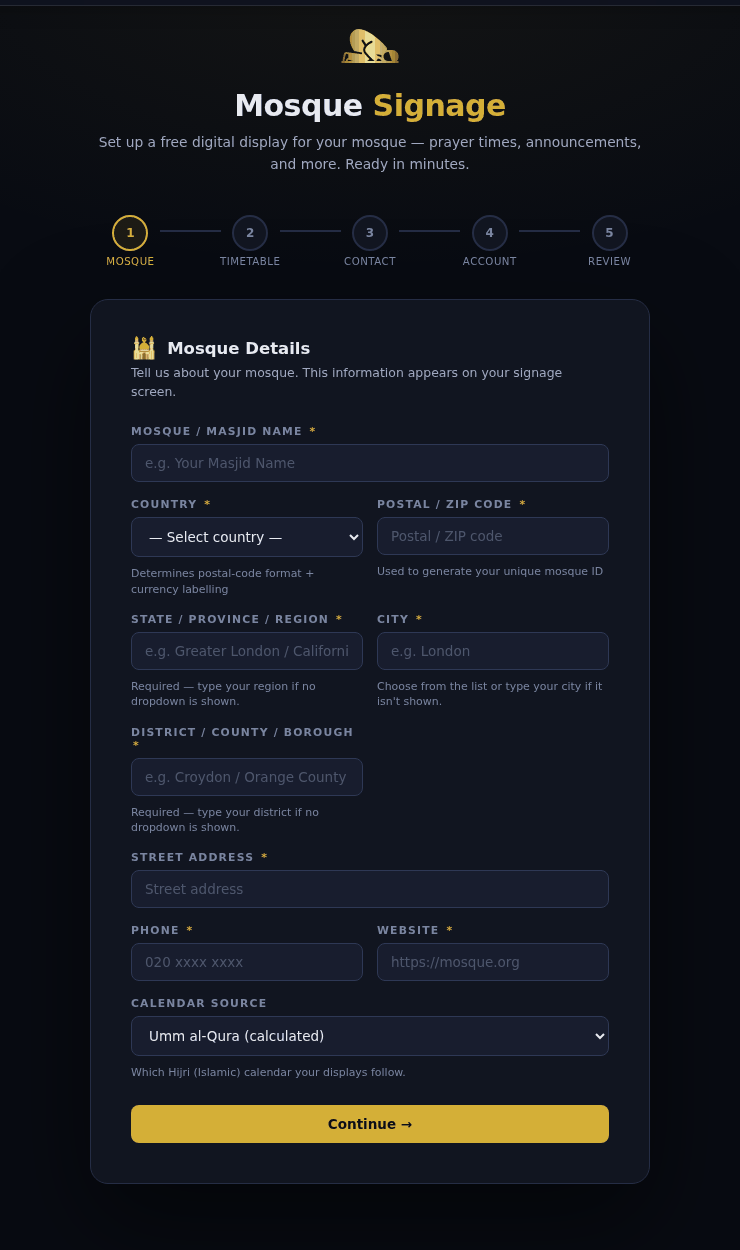
Step 1 — Mosque Details. Fields marked * are required. - Mosque / Masjid name — the full name exactly as it should appear on your screens (e.g. Norbury Muslim Centre).
- Country — pick from the list. This sets the postal-code format, the currency label, and which region/city lists appear.
- Postal / ZIP code — used for your address and prayer-time location, so check it carefully.
- State / Province / Region, City, District / County / Borough — drop-downs appear for countries we have curated; otherwise type the names. City and borough are used to group Janazah announcements with nearby mosques.
- Street address, Phone, Website — shown on your screens and public listing.
- Calendar source — which Hijri (Islamic) calendar your displays follow: Umm al-Qura (calculated), Moonsighting (moonsighting.org.uk), Wifaq ul-Ulama (UK), AlAdhan, newcrescentsociety.org (UK) or Manual (your own moon sightings, recorded later in the Kiosk admin). Most mosques pick one of the automatic sources here; you can change it any time in Settings — see Guide 03.
Click Continue →. If a required field is missing, a message tells you which one.
-
Step 2 — Upload your timetable (optional)
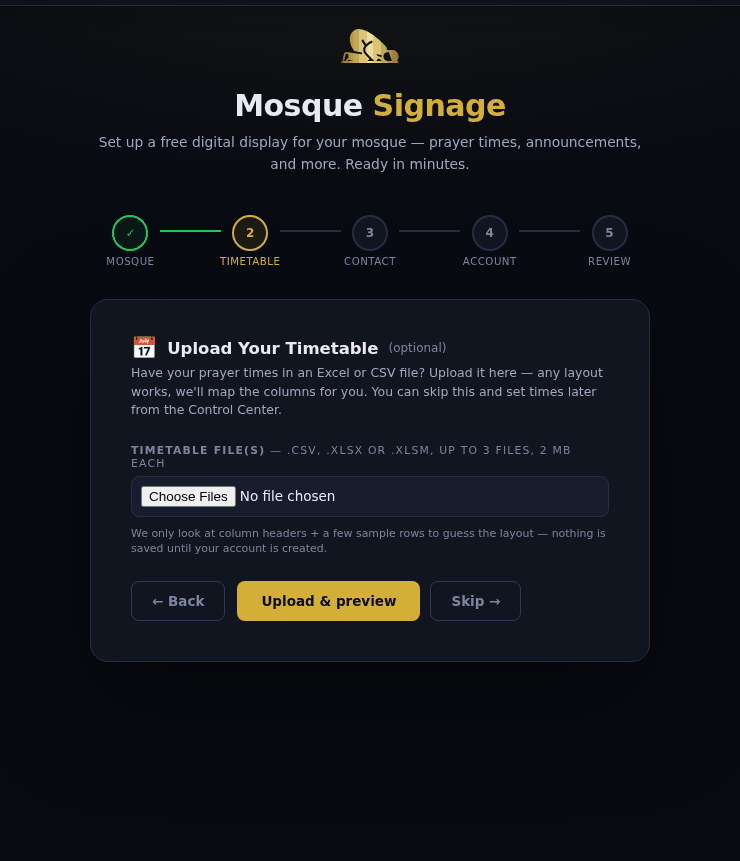
Step 2 — upload an Excel/CSV timetable, or skip and import later. If you already have your prayer times in a spreadsheet, choose the file(s) here —
.csv,.xlsxor.xls, up to 3 files of 2 MB each — and click Upload & preview. The platform reads the column headers and a few rows, guesses the layout, and shows you a mapping to check. Nothing is written until your account is created.No file to hand? Click Skip →. You start with a standard starter timetable and can import the real one from the Kiosk admin at any time.
-
Step 3 — Contact person
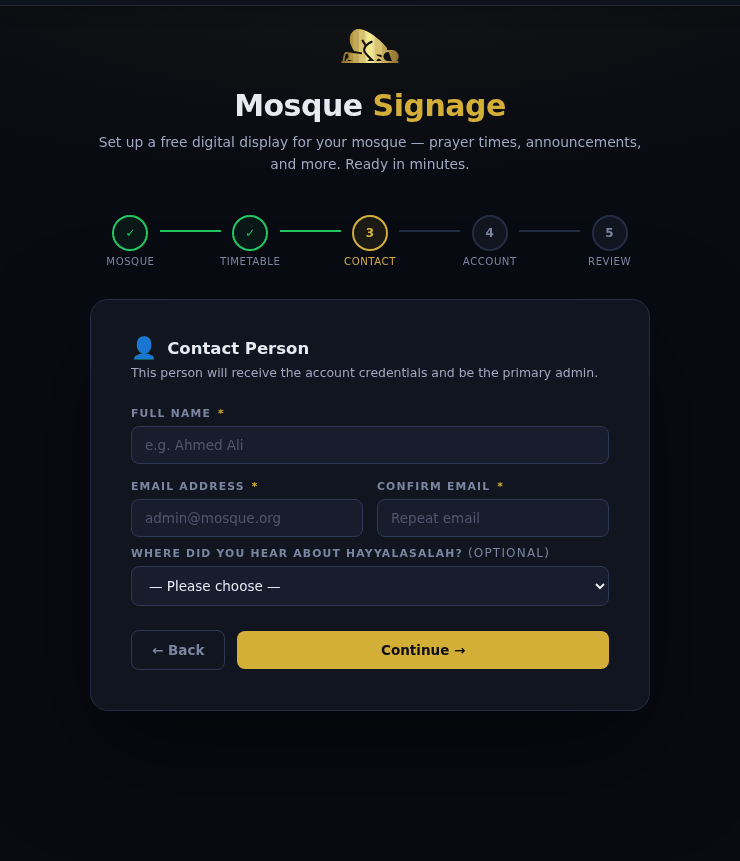
Step 3 — the person who receives the credentials and becomes the primary admin. Enter the full name and email address of the primary administrator, and type the email a second time to confirm. The optional "Where did you hear about Hayyalasalah?" helps us, but you can leave it blank.
-
Step 4 — Create your account
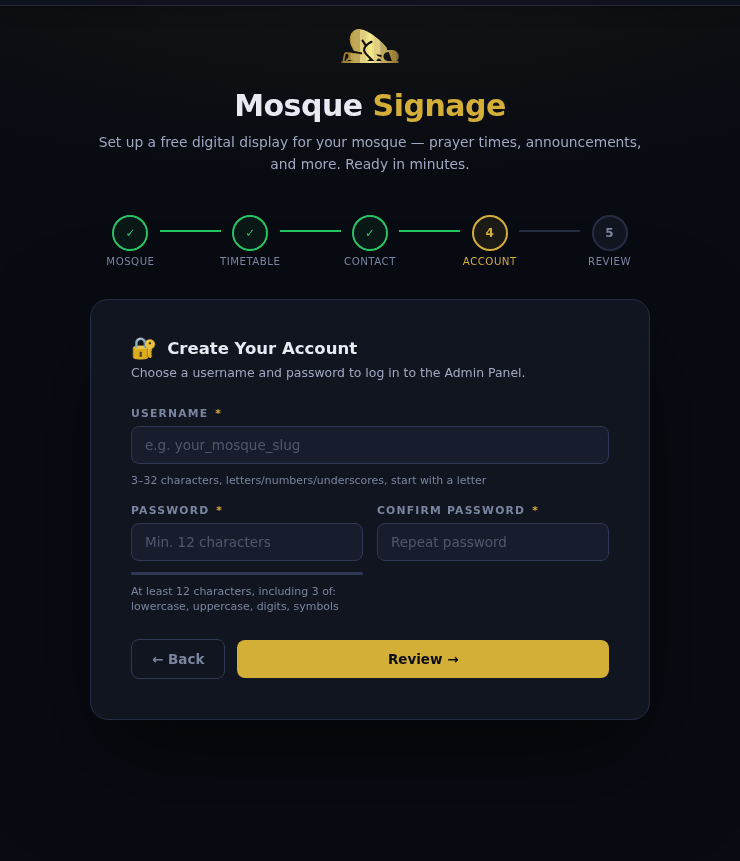
Step 4 — choose your password. Your Mosque ID (MSQ-…) is created for you. - Username — 3 to 32 characters, letters, numbers and underscores only, starting with a letter (e.g.
nmc_admin). - Password — at least 12 characters, using at least three of: lowercase, uppercase, digits, symbols. Confirm it in the second box.
ImportantThis password is what you will sign in with. If you forget it, the only recovery is the forgot-password email flow — there is no other way to retrieve it.
- Username — 3 to 32 characters, letters, numbers and underscores only, starting with a letter (e.g.
-
Step 5 — Review & Register
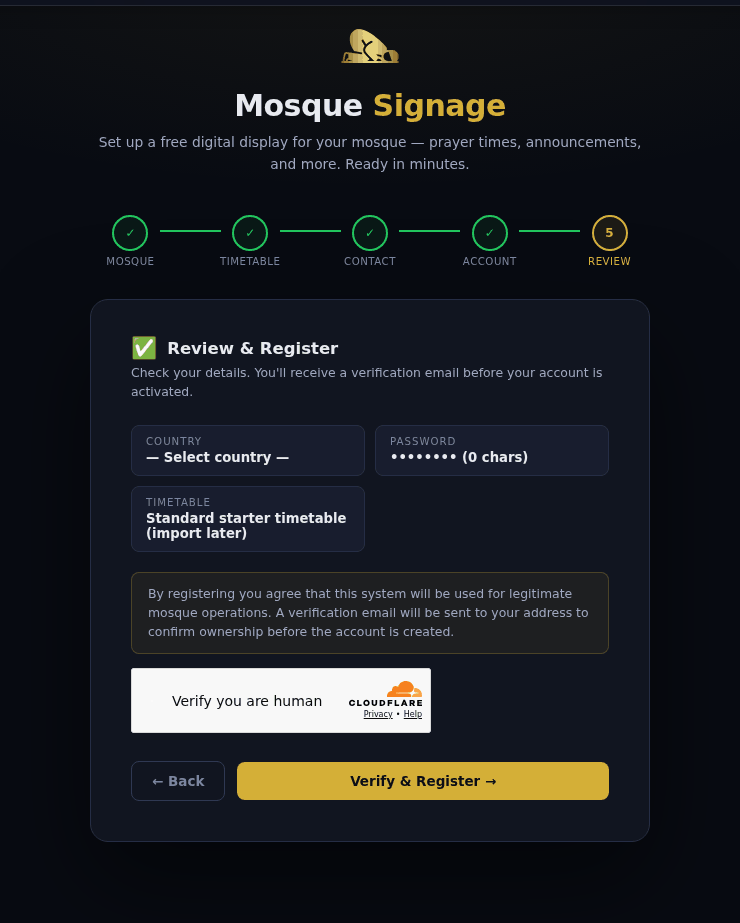
Step 5 — check the summary, pass the human check, then register. Check the summary (country, timetable choice, password length). Tick the Cloudflare "Verify you are human" box, then click Verify & Register →. You will see a "check your email" confirmation screen.
-
Verify your email
Open the email titled "Verify Your Email — Hayyalasalah Registration" and click the gold Verify My Email button. The link is valid for 24 hours; after that the pending registration is discarded and you simply register again.
Email not arriving?Check your spam / junk folder first — Gmail and Outlook sometimes route the first message there. If nothing has arrived after 10 minutes, register again with the same email; the new link replaces the old one.
-
Save your credentials — the critical step
Clicking the verification link creates your account and shows a confirmation page with:
- Your Mosque ID (e.g.
MSQ-0072) — the one identifier you sign in with, enter on your screens and quote to support. - Your login password — shown once on this page and never sent by email.
Store the password before you leave the page. The page gives you three helpers: a Copy button, a ⬇ Download credentials as .txt button, and an "I have saved my password" checkbox that unlocks the Go to Admin Panel → button.
Do not skip this stepIf you close the page without saving the password, your only recovery is the forgot-password flow in Guide 02. Put it in a password manager now.
- Your Mosque ID (e.g.
-
Sign in for the first time
Click Go to Admin Panel →. Enter your Mosque ID (
MSQ-…) and your password. Continue with Guide 02 — Signing in, which also explains how to switch on two-factor authentication.
What happens behind the scenes
When you verify your email, the platform automatically creates:
- Your admin account and, if you uploaded one, imports your timetable into a prayer-time table dedicated to your mosque.
- A kiosk display URL at
screen.hayyalasalah.co.uk/?m=72and a signage display URL atinfo.hayyalasalah.co.uk/?m=72(the number from your Mosque ID). - A welcome email with your Mosque ID, the sign-in link, and download links for the Android TV app and the Raspberry Pi installer image.
Frequently asked questions
Can I change my Mosque ID later?
Not from your own admin panel. Screens, the Android app and the API all find your mosque by this identifier, so a change has to be done by the platform team and every device re-pointed afterwards. The display name can be changed any time from the Signage admin → Identity.
What if my country isn't in the drop-down lists?
Region, city and borough become plain text boxes — just type them. Email us afterwards and we will add your country's lists.
My spreadsheet has an unusual layout. Will the upload cope?
Usually, yes — the importer looks for date and prayer columns in any order, and shows you the mapping before anything is saved. If a column is mis-read, fix it in the preview. Scanned PDFs are not accepted at registration; use the Imam Bot's file parser after sign-in instead.
Can multiple people share one account?
Better than sharing: create sub-users from the dashboard (up to 5 helpers — imam, treasurer, volunteer). Each gets their own username and password. Sub-users cannot delete the mosque or change the primary admin email.
Is the platform really free?
Yes — completely. Running costs are covered by community sadaqah, not subscriptions or ads. There is no paid tier and no usage limit.